Panl Fundamentals
At the heart of both Solr and Panl are text files which configure the respective servers. In this chapter, the configuration files will be explained - whilst the main focus of this book is on the Panl configuration, there are parts of the Solr configuration which do impact the Panl server configuration, and do require some level of understanding (especially when things do not go as expected).
Configuration Files
There are four configuration files that have impact on the Panl server, two within Solr and, two (at a minimum) within Panl.
Solr Configuration:
- solrconfig.xml - This file defines the default Solr field that will be used for a keyword search, and how the highlighting works.
Whilst this file has a large list of configuration items, the only items that are covered by this book is the <requestHandler /> XML element with the name attribute's value of /query which defines the default Solr field to search upon. See the line in the file[21]:
<requestHandler name="/query" class="solr.SearchHandler"> - managed-schema.xml - This file defines the Solr fields, their names, field types, properties, and how they are processed (e.g. indexed, stored, analysed) by the Solr server.
Each of these defined fields are then able to be configured for use by the Panl server in a variety of ways, the configuration options available depending on their Solr field type.
The Panl server relies on two files:
- panl.properties file - This file configures the Panl server on
- How to connect to the Solr instance,
- Whether to enable the in-built web applications,
- The verbosity of the error responses,
- Decimal point formatting,
- Removal of un-needed JSON keys from the response,
- Extra information that can be passed back through the JSON response,
- What Panl collections are available, and
- Which Solr collections the configured Panl collections connect to.
- <panl_collection_url>.panl.properties - There is one file for each Panl collection and its FieldSets (CaFUPs). This file determines how the Panl URLs are generated and how each of the Solr fields are mapped and configured in the Panl server.
The Relationship Between Configuration Files
In the below diagram, the relationships and interactions between the files are briefly outlined:
Image: The Solr and Panl configuration files and the interaction points
Generating And Editing The Configuration Files
The process for generating and editing the configuration files is the same for every Solr collection and Panl CaFUP.
|
|
- Copy the Solr configuration files for your Solr version to your project directory
- Edit the solrconfig.xml to configure the default search, highlighting, and other options
- Edit the managed-schema.xml files to configure the individual fields to be indexed, faceted, stored, and searched upon
- Push the config and schema to the Solr server to create the collection
- Upload the data to be indexed to the Solr server
- Generate the Panl configuration files (Note: in most cases the generation will only be required to be performed once, to get you up and running quickly. Further changes to the schema can be added manually.)
- Edit the panl.properties and <panl_collection_url>.panl.properties files
- Iterate over the process, either
- Updating the Panl configuration and restarting the Panl server, or
- Updating the managed schema file and going through the process from step 3.
|
|
Tip: Start with a small data set that covers the majority of your cases, this will allow you to iterate more quickly and test out the functionality. Once satisfied with the Solr and Panl configuration, then index the full dataset. |
Image: The dependencies and actions for the Solr and Panl configuration files.
Solr Configuration
The Solr configuration files MUST match the version for your solr installation. Both of the Solr files (and more) can be found in the
SOLR_INSTALL_DIRECTORY/server/solr/configsets/_default/conf/
In version 9.10.0, the following files and directories are present
lang/*.txt
managed-schema.xml
protwords.txt
solrconfig.xml
stopwords.txt
synonyms.txt
Copy these files and directories to your project directory (the below directory name is just a suggestion):
YOUR_PROJECT_DIRECTORY/config/solr/
Edit the Solr config and managed schema files to your project specifications and then run the Panl generator command line tool to output the generated files to (the below directory name is just a suggestion):
YOUR_PROJECT_DIRECTORY/config/panl/
Now you can edit the files and iterate your way to your solution.
|
|
Tip: As you become more knowledgeable about the Solr configuration, you may be able to remove some of the files from your project (which has been done in the sample configuration for the release package). |
|
|
IMPORTANT: Be warned that some Solr configuration files do make reference to other files (especially to those files in the 'lang' directory) and if the files do not exist, then the Solr server will fail to start. |
Search Field Configuration
Being able to search on keywords within the indexed data is base (and rather obvious) functionality for any search engine.
Within Solr, you may search either on:
- A default search field
(This is the default behaviour), or - A specific search field.
(This is where a configured field, or fields are specifically searched upon)
Panl surfaces this functionality through its configuration. To do this, both the Solr configuration and the Panl configuration must align. This configuration spans across the two Solr configuration files, namely solrconfig.xml and managed-schema.xml, the configuration points and details of each file is explained below.
Image: The configuration differences between the default keyword search and the specific Solr keyword search.
In the above image, for the Solr Default Keyword Search, there is a defined default search field named text which is an analysed field. All fields that require the default keyword search to be performed upon will be copied into this field. When the default search is performed, the Solr query parameters will include q="keyword".
For the Specific Solr Search fields, the fields may still be copied into the default field, but if they are also to be used as a facet then they SHOULD NOT be analysed as well (however you may still wish to do this in a narrow set of use cases).
- This is an analysed field which is NOT also configured to be a facet
This can be configured as a specific search field and have the keyword searched upon it (and/or in conjunction with other specific fields) - This is an analysed field which should also be configured to be a facet.
As the field is analysed, the words in the field will be broken into tokens (e.g. if the field was an author of "Joan Smith", two facets would be generated, namely "Joan" and "Smith"). From a faceting perspective, this is not desired, so the field is copied into another field (Field 3) that can then be used as the facet. - This is a facet field that is not analysed
This is a copy of Field 2 without any analysis or tokenisation placed upon it.
When a specific field search is performed, the Solr query parameters will include q=field:"keyword", when multiple specific fields are targeted for the keyword, the Solr query parameters will include q=field1:"keyword"+OR+field2:"keyword". (Note that the query operand is dependent on the configuration.)
The rules for the Default versus Specific Field Search are as follows:
- To be included in the default keyword search:
- Ensure the default field is analysed
- Copy the field into the defined default keyword search field
- To be included in a specific field keyword search:
- Ensure the field is analysed
- For the field to be also used as a facet field
- Copy the field to a non-analysed field
Keyword Search Configuration
The keyword search relies on a default field that is configured in Solr. This default search field MUST always exist and MUST always be available.
solrconfig.xml
The solrconfig.xml file determines the default search field. This default field is used if there is no configuration for Specific Solr Search Fields in both the Solr and Panl configuration files, and no specific field search is passed through as a Panl LPSE URL parameter. For the Solr server, the snippet below shows the definition for the default field to search on, denoted by the <str /> XML element with the df (which stands for default field) attribute.
<str name="df">text</str>
|
|
IMPORTANT: From the start of writing this book, there have been a couple of new Solr versions released. In the latest version of the solrconfig.xml file (version 9.10.0) this field is now _text_[22], i.e.
<str name="df">_text_</str>
This does not make a difference to the files in the release package, however it __WILL__ have an impact for new projects. |
The expanded XML definition including the default field to search upon is below:
|
01 02 03 04 05 06 07 08 |
<requestHandler name="/query" class="solr.SearchHandler"> <lst name="defaults"> <str name="echoParams">explicit</str> <str name="wt">json</str> <str name="indent">true</str> <str name="df">text</str> </lst> </requestHandler> |
This configures Solr to search for keywords ONLY within this field (i.e. text) if no specific search field is requested.
managed-schema.xml
The text value of the <str name="df" /> element in the solrconfig.xml file is text which MUST map to a field in the managed-schema.xml Solr configuration file. This 'text' field snippet below is from the managed schema file:
|
01 |
<field name="text" type="text_general" indexed="true" stored="true" ↩ multiValued="true"/> |
|
|
Note: You may define ONLY ONE FIELD to be the default keyword search field using this request handler. For greater control over the search fields and workings, see the Extended DisMax (eDisMax) Query Parser for Solr, information can be found at the following link:
https://solr.apache.org/guide/solr/latest/query-guide/edismax-query-parser.html
Note that the above is for the latest release of the Solr server version, you will need to ensure that you are reviewing the information for the correct Solr version for your project. |

The managed-schema.xml (Bookstore sample file) configures the fields, their types (and consequently whether this field type is configured to be analysed), whether they are indexed, stored, and/or multivalued. A snippet of a managed schema file is below:
|
01
02
03
04 05
06 07 08 09 10 11 12 13 14 15 |
<field name="text_author" type="text_general" indexed="true" stored="true" ↩ multiValued="true" /> <field name="title" type="text_general" indexed="true" stored="true" ↩ multiValued="false" /> <field name="description" type="text_general" indexed="true" stored="true" ↩ multiValued="false" />
<field name="text" type="text_general" indexed="true" stored="false" ↩ multiValued="true" />
<uniqueKey>id</uniqueKey>
<copyField source="author" dest="text" /> <copyField source="title" dest="text" /> <copyField source="description" dest="text" /> <copyField source="genre" dest="text" /> <copyField source="series" dest="text" />
<copyField source="author" dest="text_author" /> |
Throughout the book, the Solr field of text is used as the default field to be searched on, and any information that is required to have a keyword to be searched upon is copied to this field (see lines 9-13 above). This can be thought of as a catch-all approach with the author, title, description, genre, and series values copied to the text field, which is then analysed and is searched upon for the default keyword search.
Lines 1-3 and Line 15 are used for the Specific Solr Search Fields configuration and are not used for the default search configuration.
For line 5 above, the type is text_general, which is defined by the fieldType Solr XML element below of :
|
01 02 03 04 05 06 07
08 09 10 11 12 13 14
15 16 17 |
<fieldType name="text_general" class="solr.TextField" positionIncrementGap="100"> <analyzer type="index"> <tokenizer name="standard"/> <filter name="stop" ignoreCase="true" words="stopwords.txt" /> <filter name="lowercase"/> <!-- in this example, we will only use synonyms at query time <filter name="synonymGraph" synonyms="index_synonyms.txt" ignoreCase="true" ↩ expand="false"/> <filter name="flattenGraph"/> --> </analyzer> <analyzer type="query"> <tokenizer name="standard"/> <filter name="stop" ignoreCase="true" words="stopwords.txt" /> <filter name="synonymGraph" synonyms="synonyms.txt" ignoreCase="true" ↩ expand="true"/> <filter name="lowercase"/> </analyzer> </fieldType> |
|
|
Notes: An analyzer XML element is defined for both the indexing and querying. For the examples in this book, the default configuration is used with no changes, if you are integrating a specific Solr configuration, your configuration for the index and query analysers may differ. |
|
|
IMPORTANT: Throughout the book the Solr field named text is the default field that is analysed and used for the default search field. If you are integrating your own Solr configuration, ensure that the Solr field configuration matches your values (newer Solr schema versions use the field _text_). |
Summary
To correctly configure the default keyword search field:
- Check the solrconfig.xml for
- the requestHandler element with value of the name attribute as /query,
- and the child str element with the value of the name attribute as df
The text of this element is the default field that Solr will use to perform keyword searches upon
- Check the managed-schema.xml file for
- The field element with the value for the Solr field with the name attribute as text,
- Check the value of the type attribute against the fieldType element with the value of the name attribute and that this field type has child elements that are analysed.
The diagram below shows the relationship between configuration items for the default search:
Image: The Solr configuration items for the default search
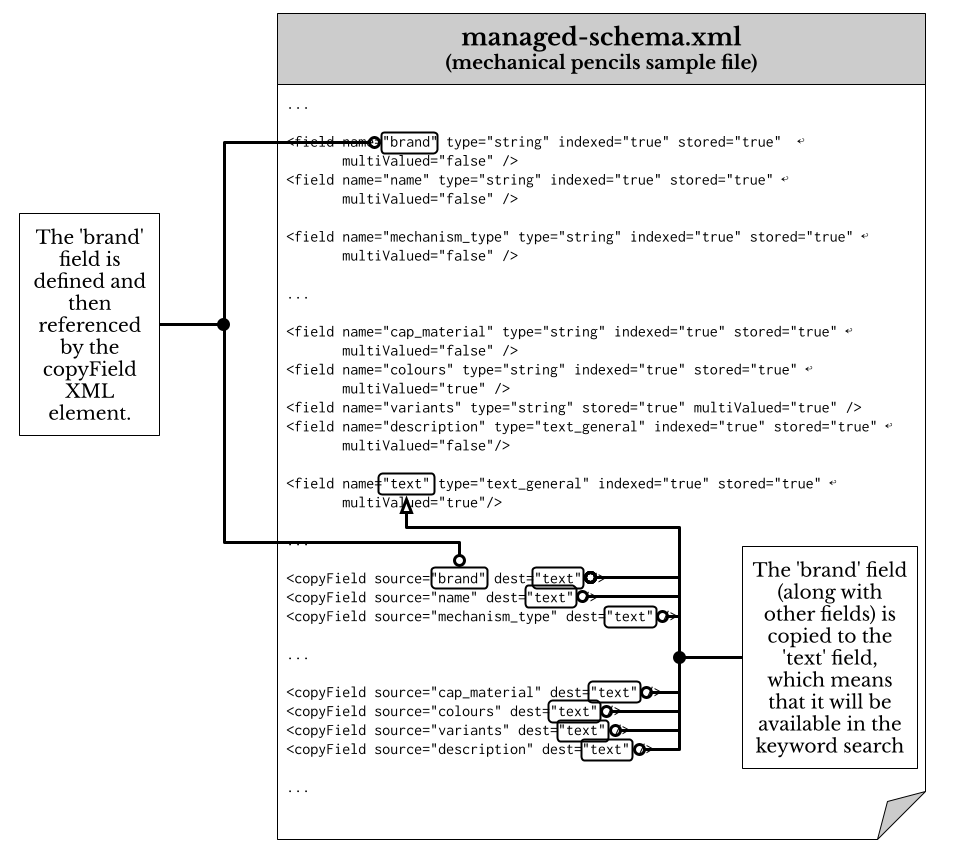
The Solr text field above is used as a holding area to copy other fields into it so they may have the keyword search applied to them, whilst keeping the original un-analysed value. The below shows the relationship and elements of a cutdown version of the managed schema file for the mechanical pencils.
Image: The Solr fields and the copyField directive.
Specific Solr Field Keyword Search Configuration
To define specific fields to be searched upon, (either individually or collectively), rather than the default keyword search field, additional configuration is required in both the managed-schema.xml and <panl_collection_url>.panl.properties.
We will be using a different pattern from the default field configuration (which uses <copyField /> XML elements) to ensure that, where required, the specific field can be used as a facet AND as a Specific Solr Search Field.
|
|
Note: The examples for this part are based on the Bookstore sample files. |
managed-schema.xml
Within Solr the three fields text_author, title, and description MUST be of a type that has an analyser so that they can be searched upon. All three are set to the type text_general which is then indexed by Solr.
|
|
IMPORTANT: The fields also __MUST__ be stored as well if you wish to retrieve the fields within the returned result documents. |
|
01 02 03
04
05
06 07 08 09 |
...
<field name="text_author" type="text_general" indexed="true" stored="true" ↩ multiValued="true" /> <field name="title" type="text_general" indexed="true" stored="true" ↩ multiValued="false" /> <field name="description" type="text_general" indexed="true" stored="true" ↩ multiValued="false" />
...
<copyField source="author" dest="text_author" /> |
Line 9:
You may be wondering why there is a field definition for text_author and author, and why the field definition for author wasn't set to a type of text_general, which would enable the Specific Solr Search Field keyword search (as is done with the title and description fields). The simple answer is that the author field is also going to be configured as a facet, and it it were set to t type that was text_general, then the individual words of the author would be tokenised and instead of having facets like the following:
- John Smith (1)
- Joan Smith (1)
- John Cavendish (1)
The tokenised facets would be displayed as:
- John (2)
- Smith (2)
- Joan (1)
- Cavendish (1)
<panl_collection_url>.panl.properties
To activate Specific Solr Search Fields, in the <panl_collection_url>.panl.properties, you will need to configure the list of analysed fields that Panl can work with by using the panl.search.fields: e.g.
panl.search.fields=title,\
text_author,\
description
Additionally, for any Solr fields listed within the panl.search.fields configuration above, There must be a corresponding Panl field definition of the form panl.search.<lpse_code>=<solr_field>.
Summary
To correctly configure a Specific Solr Search Field:
- Ensure that the managed-schema.xml has
- The Solr field element for the field which is analysed (e.g. text_general)
- Configure the <panl_collection_url>.panl.properties file such that
- The analysed field is included as a the Panl Search field configuration (i.e. add a property panl.search.<lpse_code> (Note that this is in addition to setting it as a facet or field)
- The analysed field is also included in the comma separated list for the property panl.search.fields.
Below is an image of the configuration for Specific Solr Search Fields:
Image: The specific Solr search fields in the Panl configuration file
The above image shows the configuration for three fields to be Specific Solr Search Fields, namely, text_author, description, and title.
The Bookstore walkthrough goes into greater detail, which includes boosting query terms.
Panl Field Configuration
The <panl_collection_url>.panl.properties has a raft of configuration items that will impact the facets and results that are available and construction of the LPSE URL. This part will focus on the configuration of the Panl fields, although the following items are also configured within the properties file:
- LPSE code length,
- the
- query,
- sort,
- page,
- number of rows,
- query operand, and
- passthrough LPSE codes
- The URL parameter that the keyword search will respond to
- Whether to return facets that only have one result
- Whether to return facets which have the same number of results as returned documents
- Number of rows for default result, lookahead, and maximum,
- Highlighting,
- Ordering of the LPSE codes,
- FieldSets,
- Sort fields, and
- Search fields.
To configure the Panl fields, the configuration items will always contain the following properties:
panl.<field_type>.<lpse_code>=<solr_field>
panl.name.<lpse_code>=<panl_name>
panl.type.<lpse_code>=<solr_field_type_class>
And will optionally contain the following property (only if the Solr field definition element has the attribute and value: multiValued="true")
panl.multivalue.<lpse_code>=<true>
Where:
- <field_type> is one of
- facet, or
- field.
- <lpse_code> is the configured Panl LPSE code
- <solr_field> is the Solr field that matches the name as defined in the managed schema configuration file.
- <panl_name> is the more human readable text that can be used to be displayed in the UI.
- <solr_field_type_class> is the truncated Solr class name which is duplicated from the managed schema file.
Note: An additional property can also be added to either a facet or a field of the form panl.search.<lpse_code>=<solr_field> which will add this to the list of Specific Solr Search Fields.
Image: The Basic Panl field definitions which can be automatically generated by the in-built Panl Generator.
When configuring the Panl, there are two types of fields available, a regular field and a facet field.
Panl Regular Field
A Panl regular field (or just a Panl field) is a field that can be sorted on, returned in the results, but it WILL NOT be returned as a facet. These fields are useful to return additional information with the results. For example, in the mechanical pencils configuration file, the 'Body Shape' and 'Grip Type' for a specific pencil are not facets, however they can be returned with the results, and can also be configured to be a Search field (if they are analysed by Solr).
All Panl Regular Fields have the configuration of the form:
panl.field.<lpse_code>
An example of a field from the mechanical pencils collection:
panl.field.b=book_image
panl.name.b=Book Image
panl.type.b=solr.StrField
Which defines the Solr field of book_image as a Panl Regular Field.
You may also define any field as a Specific Solr Search Field by setting the property (however this must also be correctly configured in the Solr server as well):
panl.search.<lpse_code>=<solr_field_name>
Remember: The Solr field that this references MUST be configured to be analysed in the managed-schema.xml file.
Panl Facet Field
A Panl facet field is a field that can be faceted, sorted, and returned with the results. It can also be configured to be a Specific Solr Search Field (although this is not recommended for the majority of use cases). When configured as a Facet Field, the options that are available are dependent on the Solr field type class as set in the property panl.type.<lpse_code>=<solr_field_type_class>.
All Panl Facet Fields have the configuration of the form:
panl.facet.<lpse_code>
An example of a field from the mechanical pencils collection:
panl.facet.D=decade_published
panl.name.D=Decade Published
panl.type.D=solr.IntPointField
Depending on the field type, various options are available for configuration. For full details on configuration options for different facet types, see the section on Facet Definitions.
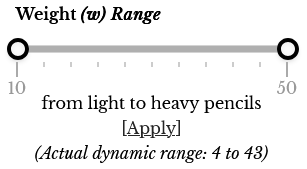
An example of a RANGE facet from the mechanical pencils configuration file. The first three lines below are the standard field definitions, the rest of the lines define this Panl field as a RANGE facet with its various allowable configuration items.
panl.facet.w=weight
panl.name.w=Weight
panl.type.w=solr.IntPointField
panl.suffix.w=\ grams
panl.range.facet.w=true
panl.range.min.w=10
panl.range.max.w=50
panl.range.prefix.w=weighing from
panl.range.infix.w=\ to
panl.range.suffix.w=\ grams
panl.range.min.value.w=from light
panl.range.max.value.w=heavy pencils
panl.range.min.wildcard.w=true
panl.range.max.wildcard.w=true
panl.range.suppress.w=false
Setting The Field To Allow A Specific Search
If the Solr field is analysed, then the Panl field may also be configured to be a Specific Solr Search Field, an example from the Bookstore configurations file:
panl.search.T=text_author
|
|
Note: This property is IN ADDITION to either the panl.facet.<lpse_code> or the panl.field.<lpse_code>. |
See the section above on Specific Field Keyword Search Configuration details about how to ensure that these fields are correctly configured in both the Panl and Solr servers.
Summary of Panl Field Configuration Options
Summarised below are the Panl Field types and the available options and configuration items available.
|
|
|
The Panl Field Can ... |
||||
|
Panl Field Type |
Definition |
Be used as a sorting option? |
Returned with results? |
Be used as a Specific Solr Search Field? |
Be faceted upon? |
Have extra config. options? |
|
Regular Field |
panl.field. |
Yes |
Yes |
Yes (*) |
No |
No |
|
Facet Field |
panl.facet. |
Yes |
Yes |
Yes (*) |
Yes |
Yes |
(*) Provided that the underlying Solr field definition is analysed. Note: Setting a Facet Field to be a Specific Solr Search Field is only useful in a narrow set of use-cases, and in general, this should not be done.
|
|
IMPORTANT: Remember that you may define multiple files (and associated CaFUPs) for any Solr collection. This allows you to define the Panl fields one way in one file, and another way in another file. |
~ ~ ~ * ~ ~ ~