
The Snug Experience
Snug should let people double-click your application and get on with their work, without needing to understand JAR files or Java runtimes.
When the launcher does need to communicate, its prompts, icon, and splash screen should feel like part of your application.
What Happens When Someone Double-Clicks?
When someone double-clicks the Windows executable created by Snug, they start the Snug launcher built into it, rather than the Java application directly.
The launcher checks what the application needs and prepares its files before starting Java. For the person using your application, there are two experiences worth considering: the first launch and later launches.
The Initial Launch
On the first launch, Snug checks for a suitable Java runtime before starting the application.
If a suitable runtime is unavailable, Snug can prompt the user to download the required components, as shown in Section 2: Building with Snug. The prompt should clearly belong to your application.
|
|
Note: Snug's runtime download behaviour can be configured. See Section 4: Configuration Options for the available settings.
|

The Normal Launch
On later launches, Snug still checks that the required runtime and application files are available. When they are, it reuses them and starts the application without repeating the download. A configured splash screen can appear during startup.
This is the experience Snug aims to provide:
|
~ ~ ~ * ~ ~ ~ "Double-click the application.
~ ~ ~ * ~ ~ ~ |
The technical details required to make that happen belong behind the scenes.
Application Identity
Before choosing an icon or splash screen, decide how your application should be identified.
Two settings are particularly important:
- Application name - The name people will recognise when they use your application.
- Company name - The organisation or person responsible for the application.
Snug also uses these values internally to identify the application and manage its local files. Choose them carefully, particularly if you intend to distribute the application to other people.
Other details help give your application a consistent appearance: version information, an application icon, a startup splash screen, and launcher messages.
Together, these details help make your executable recognisable as your application, rather than simply another file someone has received.
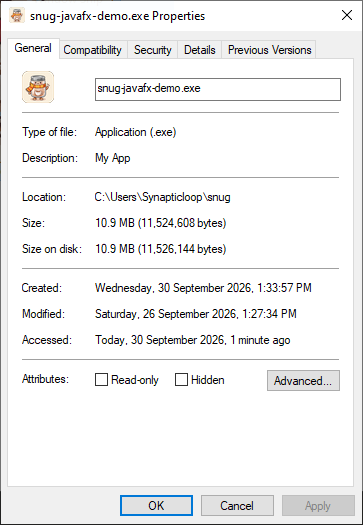
Windows can also display information about your application when someone hovers over the executable in File Explorer or opens its Properties window.
|
|
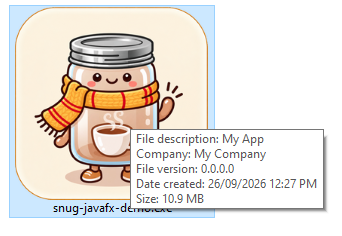
The fields shown may vary with the Windows version and File Explorer settings.
|
|
Before customising these details, let's bring your Snug settings together.
Introducing the snug.options File
Use snug.options to keep your build settings together as you customise your application.
This plain-text file stores the options Snug uses when building your executable.
The easiest way to get started is to let Snug create an example options file. Open PowerShell in the folder where you are working and run:
|
|
|
|
Snug creates snug.options in the current folder, with settings and example values you can edit. Open it in Notepad or another plain-text editor and adjust the values for your application. If snug.options already exists, Snug will not overwrite it by default.
You can also create the file yourself in a plain-text editor. Make sure it is named snug.options, not snug.options.txt.
To practise branding the Snug JavaFX demonstration application, start with these three settings in snug.options. My Application and My Company are example labels; the input remains the demonstration JAR:
--input "snug-javafx-demo-windows.jar"

--name "My Application"

--company "My Company"
Save snug.options, then run .\snug.exe in PowerShell from the same folder to build the executable. Double-click the resulting executable to test it.
Add a custom icon or splash screen using the examples below when you are ready.
Section 4: Configuration Options explains how Snug locates and reads this file, combines it with command-line options, and lists the available settings.
The Application Icon
An application icon helps people recognise your application in File Explorer, on the desktop, and in Windows dialogs. Every executable built with Snug has an icon.
|
|
IMPORTANT: Windows may cache an executable's icon using its filename. If File Explorer still shows the old icon after a rebuild, try a different output filename to check the new icon. |

The Default Icon
If you do not provide your own icon, Snug uses its built-in default. That is fine while you are testing your application.
|
|

Using Your Own Icon
To use your own icon, add a PNG or ICO image with the --icon option:
--icon <PNG|ICO>
For example, add the following line to snug.options:
--icon "snug\icon.png"
Snug accepts PNG and ICO files. Choose a simple image that stays recognisable at small sizes.
The same icon also appears in Snug's launcher dialogs, including those shown when runtime components are required or an error occurs. This helps the messages feel like part of your application.
The Splash Screen
If an application takes a few seconds to open, a splash screen shows that it is starting. This is usually an image containing the application's name, logo, or other artwork.
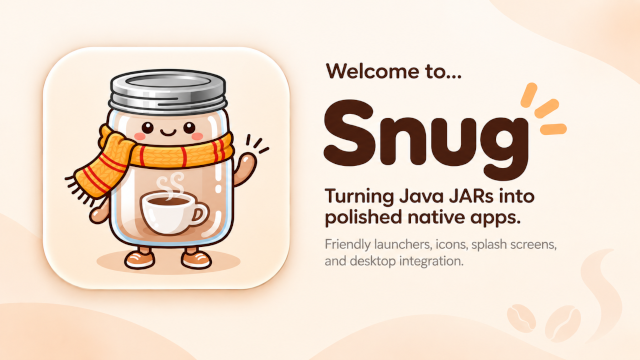
Snug can display a splash screen almost immediately after the user double-clicks the Windows executable. For example, snug-javafx-demo-windows.exe displays the Snug demonstration splash screen while the application is being prepared and started.
|
|
Should Snug or Your Java Application Display the Splash Screen?
A splash screen does not have to be provided by Snug; your Java application can display its own. This gives you a choice:
- Let Snug display the splash screen.
Because Snug is already running before the Java runtime starts, its splash screen can appear very quickly after the user double-clicks the executable. This is useful when you want to give the user immediate feedback that the application is starting.
- Let the Java application display the splash screen.
In this case, the splash screen is controlled by the Java application itself. Exactly how it looks and behaves is up to the developer who created the application.
|
~ ~ ~ * ~ ~ ~ You would not normally need both. For a longer startup, however, Snug could show an immediate
~ ~ ~ * ~ ~ ~ |
Do You Need a Splash Screen?
Not necessarily.
If your application opens almost immediately, a splash screen may add little value and can make startup feel slower. If there is a noticeable delay, a splash screen can reassure the user that something is happening. Choose one because it improves the experience, not simply because Snug supports it.
Size and Duration
A splash screen should generally be large enough to be clearly visible without taking over the user's screen.
Choose an image that is easy to recognise and a display time that does not make startup feel unnecessarily slow. Section 4: Configuration Options covers the defaults and size-warning settings.
Configuring the Splash Screen
Add your image and a minimum display time to snug.options:
--splash "snug\splash.png"

--splash-ms 2500
Save the file and rebuild with .\snug.exe. This example displays your splash image for at least 2.5 seconds. See Section 4: Configuration Options for the full option reference.
For now, remember that the splash screen is part of your application's experience. It should look like it belongs to your application rather than advertising the tool that was used to package it.