
How Snug Configuration Works
Snug takes its build settings as command-line options. For a small build, you can enter them directly on the command line. For example:
|
|
|
|
Invoice Viewer is a fictional application used for the configuration examples in this section. Replace its JAR and identity values with your own. As the number of options grows, keep them in an options file rather than typing them on every build.
By default, Snug looks for a file named in the directory from where the snug.exe was run:
snug.options
Using an options file is the recommended way to configure a real application. It keeps settings together and makes builds easier to repeat.
You can generate a starter file by running:
|
|
|
|
Snug creates an example snug.options file in the current working directory. Open it in a text editor and adjust the settings for your application. If a file already exists, Snug will not overwrite it by default. The file-generation options are described later in this section.
For most Windows x64 builds, use a single snug.options file. An optional snug.windows.options file can hold Windows-specific settings. For single-value options, precedence is highest first:
|
Priority |
Configuration source |
What it does |
|
|
|
|
|
1 |
Command line |
Overrides values from either options file |
|
2 |
|
Overrides the common options file for Windows builds |
|
3 |
|
Recommended general configuration |
Both default options files are read from the current working directory, not from beside
snug.exe. Using --options <PATH> instead selects one specified file and bypasses both default files.
Example: Assume snug.options contains:
--name "Invoice Viewer"

--company "Example Pty Ltd"

--version "1.0.0"
If you then run:
|
|
|
|
In this example, the command-line version overrides the value in
snug.options.
Repeatable options behave differently: --jvm-arg and --localisation entries accumulate from snug.options, then snug.windows.options, then the command line. Supplying one on the command line does not remove entries from the options files.
The resulting executable uses the name "Invoice Viewer", company "Example Pty Ltd", and version "1.1.0".
|
|
Tip: Start with the command line while you are experimenting. Once your configuration begins to grow, move it into |

Input and Output
Snug needs to know which Java application should be packaged and, optionally, where the finished Windows executable should be written.
Specify the JAR file or directory with either of these forms:
--input <JAR|DIR>
Or use a positional input:
[JAR|DIR]
Using --input
For example:
|
|
|
|
For repeatable builds, put the input in
snug.options:
--input invoice-viewer.jar
Using the Positional Input
The equivalent positional command is:
|
|
|
|
The positional input does not have to appear last on the command line.
The positional form is also accepted in an options file. For clarity, this book recommends using --input in snug.options.
Do not supply both --input and positional input on the same command line. A positional input supplied on the command line overrides --input from an options file.
Input Source
If the input is a single JAR file, Snug packages that JAR as the application.
If you supply a directory instead, Snug includes the JAR files found directly inside that folder, sorted by filename. It does not search subfolders. This is useful when an application consists of several JAR files rather than a single JAR.
For a multi-JAR application, use --main-class to specify the startup class if the JAR manifests do not provide the appropriate entry point.
If you are unsure which class should be used as the application's entry point, Snug can inspect the input JAR or JARs and report classes that declare a conventional Java main method.
Use:
|
|
|
|
This is a diagnostic check only. It does not build the application. The --find-main option is covered in more detail later in Build and Diagnostic Tools. An abbreviated output when running this on the snug-javafx-demo-windows.jar demonstration JAR is shown below:
|
|
|
You will notice in the above output that two main classes were found in the
snug-javafx-demo-windows.jar, so it is important to ensure that the launcher uses the correct Main-Class when running your Java application. Snug will indicate which jar is configured to be run with the <-- --main-class designator.
Output File
The output option is:
-o, --output <EXE>
This controls the path and filename of the Windows executable that Snug creates.
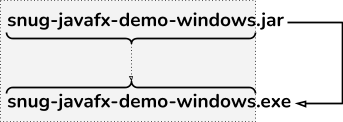
For a single JAR input, Snug uses the JAR's filename to name the executable unless you specify an output file. For example:
invoice-viewer.jar → invoice-viewer.exe
|
|
IMPORTANT: If the output executable already exists, Snug will replace it with the newly built executable. Snug does not create a backup of the existing file. If you need to keep the previous executable, copy or rename it before building again. |

Application Identity
Two options are particularly important because Snug uses them to identify the application:
--name <NAME>
--company <COMPANY>
The --name option sets your application's display name. If omitted, Snug uses the input JAR filename without its .jar extension, or the input directory name.
The --company option identifies the organisation or person responsible for the application. If omitted, Snug uses the resolved application name.
Although both options have defaults, we recommend setting them explicitly before distributing your application. Together, they form part of its local identity and determine where Snug stores its cached application files.
On Windows, these values determine the application's local cache path:
%LOCALAPPDATA%\snug\<Company>\<Application>\
See Section 7: Technical Details for cache hashing, payload updates, and cleanup behaviour.
|
|
IMPORTANT: Choose a distinct combination of |
The application name also becomes part of the Windows executable metadata, including ProductName and FileDescription. The company value becomes the Windows CompanyName metadata.
Changing the Cache Location
Snug normally chooses a per-user cache directory automatically. Most applications should use this default. The advanced --cache-dir <ABSOLUTE_DIR> option sets a different location at build time. It requires an absolute path, because a relative path may not resolve reliably on another person's computer.
|
|
IMPORTANT: Avoid changing the cache directory unless you have a specific deployment requirement. A folder that exists on your computer may not exist, or may not be writable, on someone else's. If you override the default, test the location on every target machine. Section 7: Technical Details explains how Snug manages the cached files. |
Application Metadata
Once you have chosen the application's name and company, you can add details that Windows displays about the executable, along with an icon and an optional link to check for newer versions.
The main options covered here are:
--version <VERSION>
--description <TEXT>
--copyright <TEXT>
--update-url <URL>
--icon <PNG/ICO>
Version, description, and copyright are stored as Windows executable metadata. The icon provides a visual identity, while the update URL adds a link to the launcher's error dialog. It does not change how application updates are delivered.
Version
The --version option sets the Windows ProductVersion and FileVersion values and accepts between one and four dot-separated numeric components, for example:
1
1.2
1.2.3
1.2.3.4
Windows stores four version components. If fewer than four are supplied, the missing trailing components are set to zero. For example:
1.2.3 → 1.2.3.0
Each component must be between 0 and 65535. Invalid values are rejected before the build starts.
Description
The --description option sets the Windows FileDescription field. People can see it in places such as Properties > Details without opening the application.
For example:
--description "Internal invoice review application"
A short description is usually more useful than repeating the application name.
Copyright
The --copyright option supplies the Windows LegalCopyright metadata.
For example:
--copyright "Copyright 2026 Example Pty Ltd"
This is informational metadata stored in the executable. It does not provide code signing, licence enforcement, or any other form of technical protection.
Update URL
The --update-url option adds a clickable "Check for a newer version" link to the launcher's error dialog. Set it to a page where people can find a newer release, such as your application's GitHub Releases page. This link appears in the error dialog; it is not an automatic update system. Snug does not download or install new versions of your application.
Application Icon
The --icon option accepts a PNG or ICO file to replace Snug's default icon. Section 3: Customising the Snug User Experience explains how this affects the user experience, including Windows icon caching.
For PNG artwork, we recommend starting with a high-resolution square image, such as 1024x1024, so Snug has enough detail when producing the Windows icon sizes used by the executable.
If you do not provide an icon, Snug uses its built-in default. For distribution, choose a simple design that stays recognisable at small sizes.
Java Runtime
These options tell Snug which Java version your application requires, which class to launch, and whether the Java Virtual Machine (JVM) needs any special settings. They do not determine how Snug downloads a runtime; that is covered later under Runtime Download Behaviour.
--min-java <N>
--main-class <CLASS>
--jvm-arg <OPTION>
Minimum Java Version
The --min-java option sets the minimum Java major version your application requires. Snug uses this requirement when checking whether a runtime is suitable.
The current default is:
25
For example, if you set --min-java 25, a Java 21 runtime is too old for this build. Whether Snug can offer to download a suitable runtime depends on the separate --download-jdk setting, explained later in this section.
A Java 25 runtime meets a --min-java 21 requirement, but the minimum version alone does not determine which runtime Snug selects. Discovery and the --download-jdk mode also affect that choice.
Normally, set this to the oldest Java major version that your application actually requires. Setting a higher value than necessary can cause otherwise suitable installed runtimes to be rejected.
Main Class
Java applications normally identify their startup class through the JAR manifest, but the --main-class option can override that value and tell Snug which Java class should be launched.
This is particularly useful for applications containing more than one possible entry point, for multi-JAR builds where the appropriate main class needs to be specified explicitly, or when the JAR manifest does not contain the entry point you intend Snug to launch.
If your JAR already contains the correct Main-Class entry in its manifest, you normally do not need to set --main-class. Use it when you deliberately want to override that value, or when Snug cannot determine the correct entry point from the packaged JARs.
If you are unsure which class should be used, run --find-main before building. It can report classes that declare a conventional public static void main(String[]) method and can help you decide which value, if any, should be supplied to --main-class.
JVM Arguments
The --jvm-arg option passes an option directly to the Java Virtual Machine when Snug creates it.
The option can be repeated. For example:
--jvm-arg=-Xms256m
--jvm-arg=-Xmx2g
--jvm-arg=-Dfile.encoding=UTF-8
These are JVM settings, not arguments passed to your application's own main method.
Use --jvm-arg only when your application needs a particular JVM setting. The examples above set the initial and maximum heap sizes and a Java system property.
Be careful when adding JVM arguments. Snug passes them directly to the JVM, so an invalid or unsupported option can prevent the Java runtime from starting. If your application does not require any special JVM settings, you can leave this option out.
Application Instance Behaviour
By default, Snug permits one running instance of an application. Starting the executable again activates the existing application instead of launching another copy.
To allow more than one instance to run at the same time, use:
--allow-multiple-instances
Add this option to snug.options, or supply it on the command line when building.
When --allow-multiple-instances is present, each launch can start another copy. Omit it to retain the single-instance default.
Splash Screen Configuration
The Snug splash screen is controlled by three related options:
--splash <PNG>
--splash-ms <MS>
--splash-max <WxH|off>
Splash Image
The --splash option supplies the PNG image that Snug displays while the Java application is being started.
The PNG is embedded in the executable and rendered at its native pixel size, centred on the primary monitor. Snug does not rescale the splash image.
A splash image around 480x270 to 640x360 pixels is a reasonable starting point.
Minimum Display Time
The --splash-ms option sets the minimum time, in milliseconds, for which Snug displays the splash screen.
The current default is:
1500 milliseconds. That is 1.5 seconds.
Snug dismisses the splash screen only when the minimum duration has elapsed and the JVM has signalled readiness. If startup takes longer, the splash remains visible.
Recommended Maximum Size
The --splash-max option controls the build-time warning threshold for splash-screen dimensions.
The current default is:
640x360
This setting is advisory only. It does not resize the image.
If the image exceeds the configured dimensions, Snug issues a build-time warning. The image is still displayed at its original size.
Set a different threshold using the option below, or disable the warning with off, none, or unlimited:
--splash-max <WxH>
Runtime Download Behaviour
Snug can download runtime components when a suitable Java runtime is not already available.
The runtime download option is:
--download-jdk <off|auto|force>
Choose the download mode according to your deployment needs:
off
Use an available compatible runtime without offering a download. If none is found, the launcher shows an error and exits.
auto (default)
Search for a compatible runtime first. If none is found, retrieve download information and ask the user to confirm installation. If accepted, download, verify, and extract the runtime; the user can cancel.
If you include the option, you must supply a mode: off, auto, or force. For example:
--download-jdk auto
Using --download-jdk without a value produces an error.
force
Snug skips normal Java discovery initially and uses a suitable cached Snug-managed runtime, or starts the installation flow if none is available. If the installation is cancelled or fails, Snug may still fall back to a compatible locally installed runtime.
Use auto for most applications, off where downloads are not permitted, or force to prefer a Snug-managed runtime. Force does not guarantee exclusive use of a managed runtime: the fallback described above still applies.
When Snug installs a runtime, it downloads it, verifies the downloaded archive using its SHA-256 checksum, and extracts the runtime beneath:
%LOCALAPPDATA%\snug\jdk\<version>\
Snug reuses that runtime for future launches.
Runtime Updates
When Snug downloads a Java runtime, it stores it on the computer for reuse. On later launches, Snug checks whether a suitable runtime is already available before attempting another download.
A newer Java release becoming available does not automatically cause Snug to download or install it. If a compatible cached runtime is found, Snug normally continues to use that runtime.
Consequently, a Snug-managed runtime may continue to be used after newer maintenance or security releases become available.
The current launcher does not provide an automatic runtime-update schedule or a runtime-retirement process that tracks running applications and removes older Java versions when they are no longer in use.
Anyone responsible for distributing an application should consider how its Java runtime will receive maintenance and security updates. Application updates and Java runtime updates are separate concerns, and Snug's runtime-update behaviour may evolve in future releases.
Launcher Messages and Localisation
Snug can embed customised launcher messages in different languages. This section explains how to include the files in a build; Section 5: Customising Launcher Messages shows how to edit and preview the messages.
The localisation option uses the British spelling:
--localisation <TXT|DIR>
This option is repeatable.
A single localisation file uses the filename convention:
snug-localisations.<tag>.txt
where <tag> is a BCP 47 language tag such as en, en-US, pt-BR, de, or ja. The locale is taken from the filename.
You can provide one localisation file, repeat --localisation for multiple files, or provide a directory containing them.
When a directory is supplied, Snug scans the top level only. Every file in that directory must match the expected snug-localisations.<tag>.txt pattern.
|
|
IMPORTANT: A stray file, backup file, or incorrectly named file causes the build to fail so that localisation mistakes are not silently ignored. |
Snug always embeds its built-in English baseline. At runtime, the launcher attempts the most specific matching language first, then the primary language, and finally falls back to built-in English.
Snug also warns during the build if a supplied localisation bundle is missing keys that exist in the built-in English baseline.
For example, a project might keep translated launcher messages in:
snug\localisation\snug-localisations.de.txt
snug\localisation\snug-localisations.fr.txt
and configure Snug with:
--localisation snug\localisation
Using a directory is convenient when your application supports several languages. Section 5: Customising Launcher Messages explains how to edit the messages themselves.
Use snug_preview.exe to inspect launcher dialogs without rebuilding the application. It can load a single localisation file or a directory of files, with the available languages selectable from its language dropdown.
Creating Localisation Files
To create a localisations directory containing an English template, run:
|
|
|
|
To generate a template for another language, run:
|
|
|
|
(replace de with the appropriate language tag). These commands create templates; they do not translate the text. Edit the values, preview them as described in Section 5: Customising Launcher Messages, and include the finished file or directory using --localisation <TXT|DIR>.
The optional --init-localisations-force and --init-localisations-stdout switches control overwriting and output. See the Command-Line Options Reference for their details.
Windows Manifest
Snug also provides a manifest option:
--manifest <XML>
The manifest is embedded into the Windows executable as an RT_MANIFEST resource.
Typical reasons for supplying a manifest include declaring DPI-awareness behaviour, requesting a particular Windows execution level, or supplying application identity information needed by a Windows-specific requirement. Snug does not require you to create a manifest for an ordinary application.
This is an advanced option. If you do not already know that your application requires a custom Windows manifest, you can normally leave it alone.
|
|
IMPORTANT: Snug embeds the manifest you provide. Snug checks that the supplied manifest is well-formed XML. You remain responsible for its Windows settings; test the finished executable on your target systems. |
Build and Diagnostic Tools
Several options are useful while testing or diagnosing a Snug build.
Dry Run
--dry-run
Validates the input and configuration and prints what Snug would build, but does not write an executable.
For example:
|
|
|
|
Use this before a real build when you want to check the settings without writing or replacing an executable.
Find Main Class
--find-main
Scans the input JAR or JARs and lists classes that declare:
public static void main(String[])
Snug also indicates whether the main class it would use appears in that list.
This is useful when a fat JAR contains several possible entry points or when you are deciding what value to supply to --main-class.
The check is diagnostic only. It does not write files and does not cause a build to fail if the configured main class is not found. This is important because a JavaFX Application subclass can be launched without declaring a conventional main method.
For example, run --find-main against snug-javafx-demo-windows.jar. An abbreviated result might be:
|
|
|
The marked entry:
The <-- --main-class marker identifies the configured entry point. Output varies with the JAR and configuration; classes beyond Snug's scan window may not be reported.
Emit Payload
--emit-payload
Writes Snug's encoded embedded payload to standard output instead of writing an executable.
This is primarily an advanced inspection or tooling option and is unlikely to be needed for a normal application build.
|
|
Technical: This is intended for advanced tooling and inspection, not ordinary builds. It outputs the encoded payload rather than verifying the final executable by itself.
|

Using a Different Options File
To select an alternative options file, use:
--options <PATH>
Lines beginning with # are comments. Use quotation marks for values containing spaces, such as --name "Invoice Viewer". Backslashes in paths are literal characters; shell-style backslash escaping is not supported.
|
|
IMPORTANT: The precedence table and repeatable-option caveat under How Snug Configuration Works also apply when selecting an alternative options file. |
Supply --options on the command line. It selects one file in place of both defaults; placing it inside an options file does not load another file.
Creating an Example Options File
Snug includes tooling options for creating an example options file:
--init-options [<PATH>]
--init-options-force
--init-options-stdout
--init-options writes the embedded example configuration and exits without building. With no path, it writes snug.options in the current working directory; an optional path selects another destination.
Existing files are protected unless you add --init-options-force.
- Add
--init-options-stdoutto print the example to the console instead of writing a file.
|
|
Tip: Generate the starter file once, then maintain your application's settings in |
Getting Help from the Command Line
You do not need to remember every Snug option because, at any time, you can display Snug's built-in help:
|
|
|
|
Or, for shorter command-line help output:
|
|
|
|
The help output describes the options supported by the exact version of Snug you are running.
Because Snug continues to evolve, this built-in help should be treated as the definitive reference for the installed version.
Other Useful Snug Tooling
Snug Version
--snug-version
Prints Snug's own version and exits.
This is different from --version <VERSION>, which sets the version metadata for the application being packaged.
A Practical Configuration Workflow
For a new application, a sensible progression is:
- Generate a starter
snug.optionsfile with
|
|
|
|
then set
--input, --name, and --company.
- Run the following command to build the executable:
|
|
|
|
Launch the result to check that your Java application starts correctly.
- Add version, description, copyright, and icon information.
- Add a splash screen if the application benefits from one.
- Decide whether you need to change runtime-download behaviour.
- Customise launcher messages or localisation if required.
- Rebuild and test the application from the user's point of view.
This keeps the configuration process incremental, so you do not need to decide everything before your first build.
A Recommended Starting Configuration
Start with the identity, metadata, and icon your application needs:
--input build\libs\invoice-viewer.jar

--name "Invoice Viewer"

--company "Example Pty Ltd"

--version "1.0.0"

--description "Internal invoice review application"

--icon snug\icon.png
This supplies identity, Windows metadata, and an icon while leaving Java requirements, runtime downloads, and instance behaviour at their defaults.
Add a splash screen, translated launcher messages, a custom manifest, or JVM settings only when needed, then rebuild and test.
Putting It Together
For comparison, this command supplies an explicit identity and JAR path:
|
|
|
|
The fuller example below adds optional branding, Java requirements, and localisation. Include only the settings your application needs.
--input build\libs\invoice-viewer.jar

--name "Invoice Viewer"

--company "Example Pty Ltd"

--version "1.4.0"

--description "Internal invoice review application"

--copyright "Copyright 2026 Example Pty Ltd"

--icon snug\icon.png

--splash snug\splash.png

--min-java 25

--download-jdk auto

--localisation snug\localisation
Without --output, a single JAR produces an executable beside it: invoice-viewer.jar becomes invoice-viewer.exe. A directory named app-jars produces app-jars.exe beside that directory.
After editing snug.options, run
|
|
|
|
to build the application. Run the resulting executable on another Windows computer to check the launch experience and any runtime-download behaviour.
The Appendix contains the compact command-line reference. This section explains which settings matter and when to use them.