
Snug Technical Details
The following pages separate the executable’s contents from the steps performed when it runs.
What Snug Actually Builds
When you run snug.exe, Snug does not convert your Java application into native Windows machine code. Your application remains a Java application; instead, Snug creates a native Windows executable that contains the Snug launcher together with the Java application and the information needed to launch it.
The executable contains the following components; this is a structural outline, not a launch sequence:
- Windows executable (container)
Contains:
- Native Snug launcher code
Alongside: - Windows resources, including configuration and application payload
- Payload includes:
- Java application JAR files
|
Image: Executable contents - native launcher code alongside Windows resources and the embedded Java payload. |
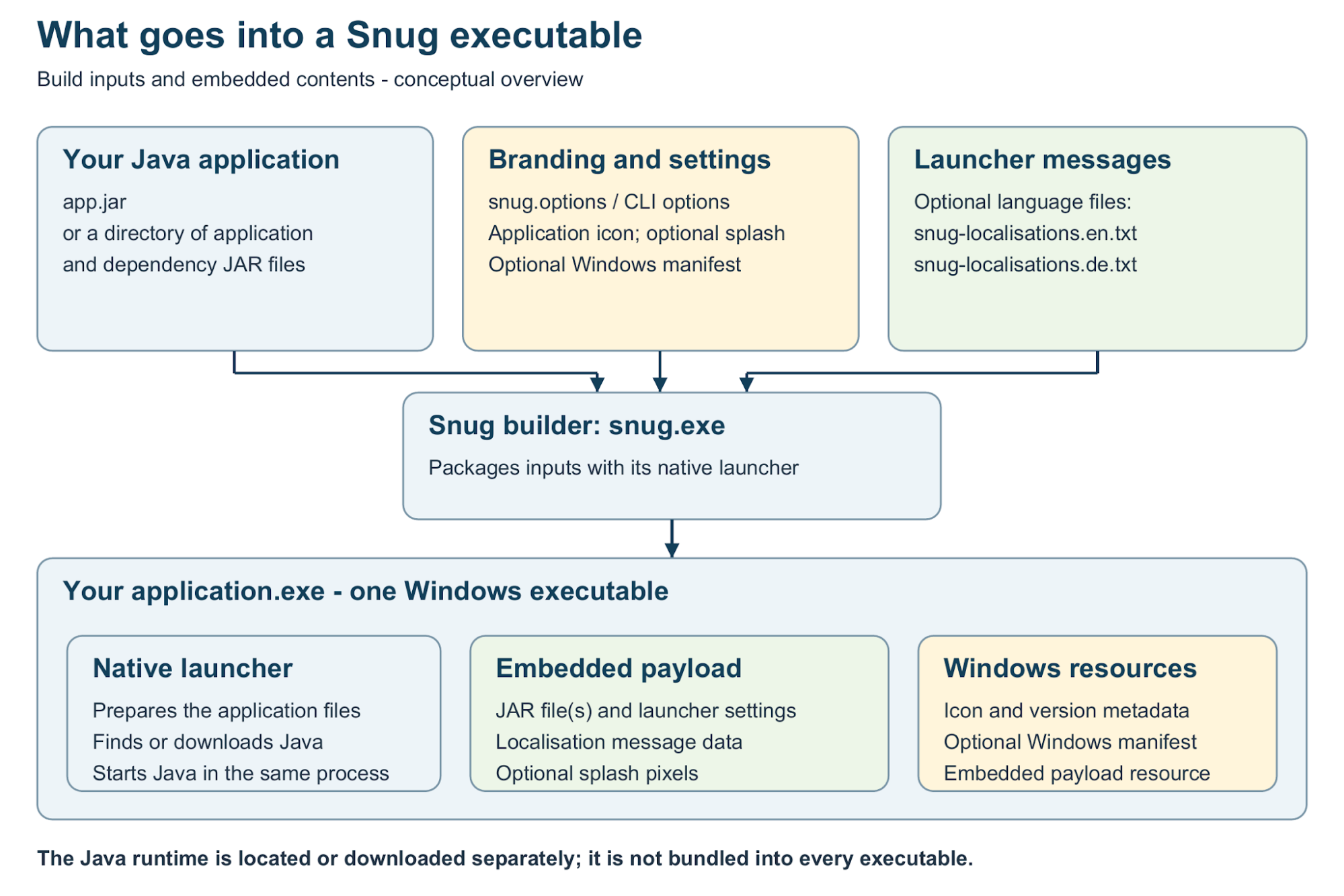
The advantage of this design is that the person receiving the application sees a normal Windows executable, while the Java application itself can remain packaged in the familiar JAR format.
The Builder and the Launcher
There are two distinct pieces of Snug involved in this process.
The Builder
snug.exe is the builder, and its job is to take your JAR file or files, your Snug configuration, and any additional resources such as an icon, splash screen, or manifest, and produce the finished Windows executable.
Once the executable has been built, the person receiving your application does not need snug.exe.
The Launcher
The Snug launcher is the native Windows program that becomes part of the executable created by the builder. Its job begins when the user double-clicks the finished .exe, at which point it reads the embedded configuration, prepares the packaged application, locates or obtains a suitable Java runtime, and starts the Java application.
This separation is important:
snug.exebuilds the Windows executable.- The embedded Snug launcher runs the application.
Anatomy of the Windows Executable
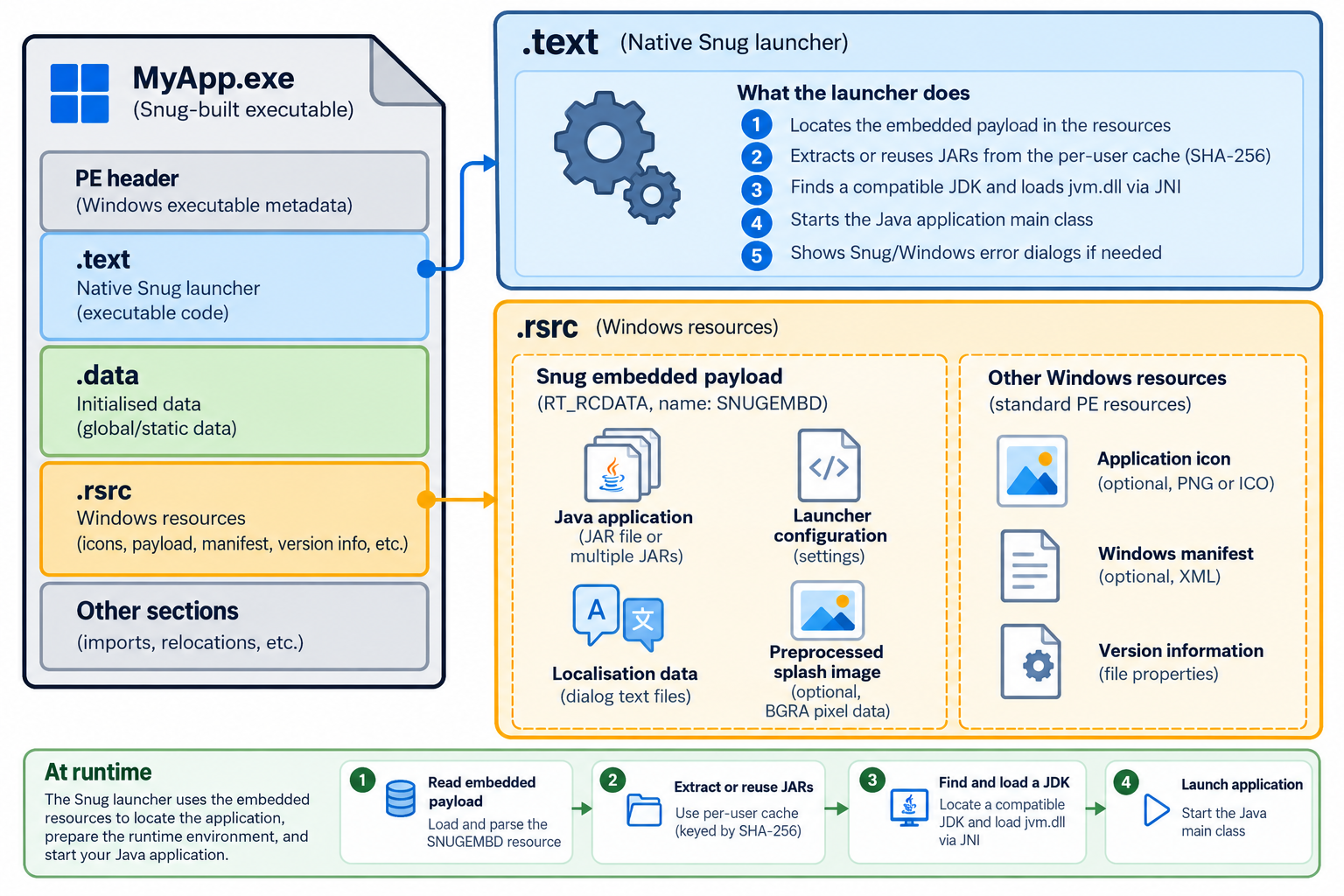
A Snug-built application is a normal Windows Portable Executable, usually referred to simply as a PE executable.
PE sections organise code and data within an executable. Windows resource types classify entries in its resource directory; they are not PE sections.
A Snug executable contains:
- the native launcher code
- Windows executable metadata
- the application icon
- an optional Windows manifest
- an optional Snug splash image
- Snug configuration
- the packaged Java application files
The Java application data is stored inside the executable as Windows resources rather than as loose files alongside the .exe.
As the Quick-Start output indicates, Snug embeds the application payload as a named RT_RCDATA resource.
|
|
Technical: |

|
Image: A Snug-built Windows executable contains the native launcher and Windows resources. Its embedded payload carries the Java application and the configuration needed to launch it. |
Windows Resources
Several of the options described earlier in this book become Windows resources in the finished executable.
For example:
- the application icon becomes an executable icon resource
- version, company, and description information become Windows version metadata
- a custom manifest becomes an
RT_MANIFESTresource - packaged application data is carried as application-defined resource data
- the Snug splash image is available to the native launcher before Java starts
This is why Windows can display information about the executable before the Java application has run at all.
The Java Application Remains a JAR
As explained in “What Snug Actually Builds”, your Java application remains in JAR form.
The launcher prepares that JAR for Java and provides the native launch experience.
This also means that normal Java concepts still matter. Your JAR still needs to be a valid runnable Java application, and the runtime used by Snug must be suitable for that application.
What Happens When the Executable Starts
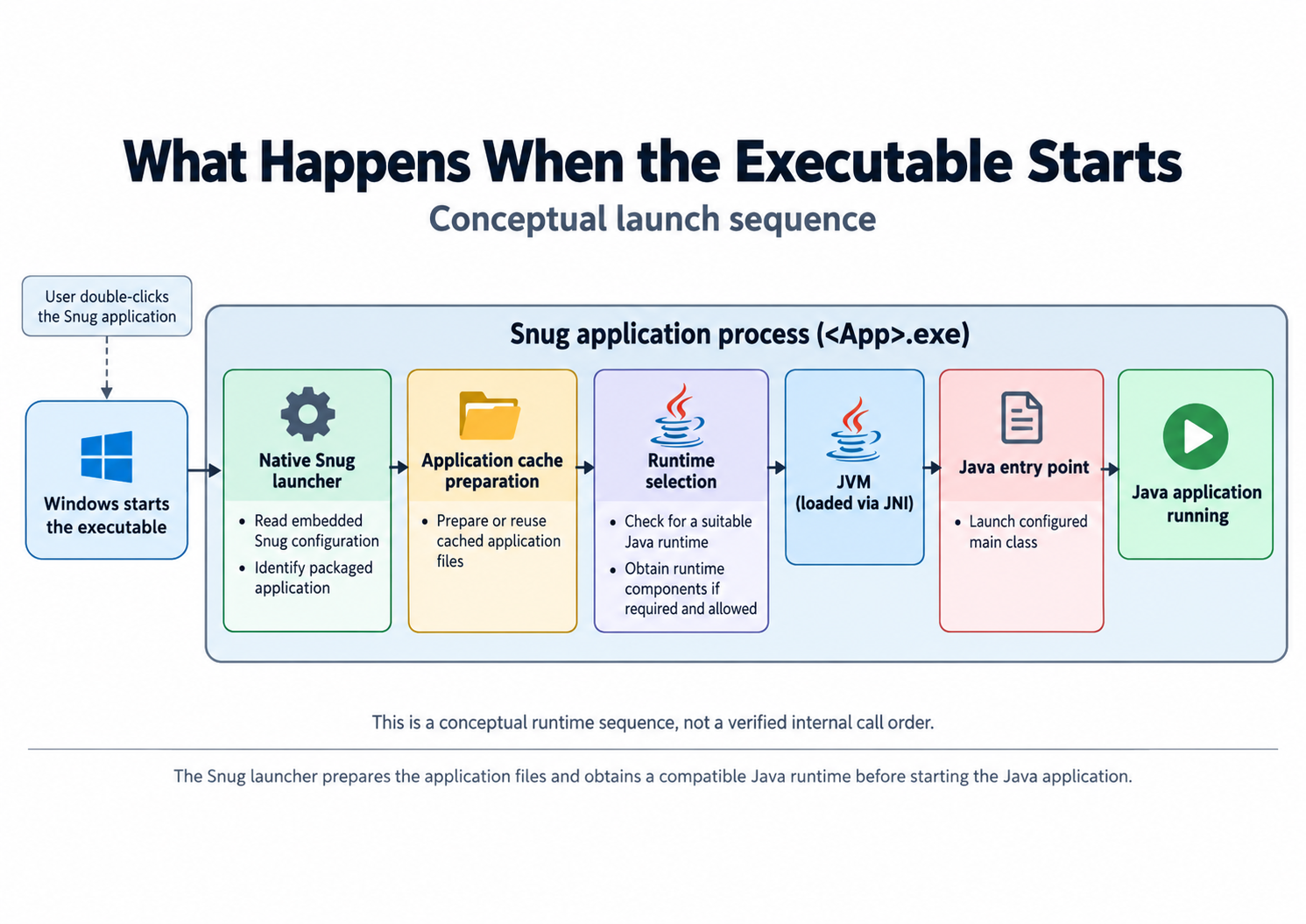
When a user double-clicks a Snug application, Windows starts the native Snug launcher, which performs a sequence of preparation steps before handing control to the Java application.
The following is a conceptual runtime sequence, not a description of the executable’s internal layout or a verified call order:
- Read the embedded Snug configuration.
- Identify the packaged application.
- Prepare or reuse the cached application files.
- Determine whether a suitable Java runtime is available.
- Obtain runtime components if the configuration allows it and they are required.
- Start the Java runtime.
- Launch the configured Java application.
- Run the Java application within the launcher process.
|
|
Application Identity and the Cache
The --name and --company values are more than cosmetic labels.
They are used by the launcher as part of the identity of the application on the user's computer.
In the current Windows implementation, Snug stores prepared application data beneath the user's local application-data area. A typical path follows this general pattern:
%LOCALAPPDATA%\snug\<Company>\<Application>\...
Within that application area, Snug can keep prepared application files associated with the packaged JAR.
The embedded JAR hashes distinguish packaged content. The build-time calculation and launch-time cache checks have different purposes, as described below.
How Snug Identifies Cached JARs
During a build, Snug calculates a SHA-256 hash for each JAR and stores that hash alongside the JAR contents in the executable's embedded payload. Each JAR therefore has its own content-based cache identifier. The hash is calculated when Snug builds the executable, not when someone launches it.
At launch, the stored hashes identify cached JARs. The launcher checks that each cached file exists and has the expected size, reusing matching files and extracting replacements otherwise. It does not recompute cached-file SHA-256 on each launch, so these checks do not guarantee content integrity.
For example, a diagnostic log may contain entries such as:
app: Synapticloop / Snug JavaFX Demo

primary JAR sha256: <hash>

cached jars: 1
Cache Lifecycle and Cleanup
Application-cache cleanup runs automatically in the background, subject to a minimum interval between sweeps. Snug records when each JAR is used and considers recent use, retained entry count, and a per-application storage budget when removing older entries. The sweep protects every JAR belonging to the current build. Cleanup is best-effort; files that cannot be removed may remain until a later sweep.
Application JAR caches and downloaded runtime caches serve different purposes. Runtime maintenance is covered below.
The exact directory names, retention thresholds, and cleanup intervals are implementation details and may change in later versions of Snug.
|
|
IMPORTANT: Use distinct |

Where Snug Stores Its Files
By default, Snug uses the current user’s Windows Local AppData area. A configured cache-directory override may change application-cache placement; the paths below illustrate the default layout.
The base directory is:
%LOCALAPPDATA%\snug
%LOCALAPPDATA% is a Windows environment variable that points to the local application-data directory for the currently signed-in user. On a typical Windows installation, the Snug directory will therefore resolve to a location similar to:
C:\Users\YourUserName\AppData\Local\snug
The following is a schematic default layout, not an exact directory listing:
|
|
|
Downloaded Java runtime components are stored in:
%LOCALAPPDATA%\snug\jdk
This runtime is stored separately from individual applications so that Snug can reuse it for future application launches rather than downloading another copy for every application.
Files belonging to an individual application are stored beneath the company and application names supplied when the executable was built. For example:
%LOCALAPPDATA%\snug\SynapticLoop\Snug JavaFX Demo
Within an application's directory, Snug keeps the prepared JAR files, launcher logs, and other cached files it needs to start and diagnose the application.
In normal use, you should not need to modify anything inside these directories manually. Knowing where they are stored is useful, however, when troubleshooting an application, examining its launcher logs, or understanding which files Snug has cached.
Why Use a Cache?
Preparing JAR files on disk once and reusing them avoids repeated extraction.
The cache also provides a writable location for launch files and diagnostics when the executable’s own directory is unsuitable.
Finding a Java Runtime
A Java application cannot run without a compatible Java runtime, so the launcher needs to determine whether an appropriate runtime is already available or whether runtime components need to be obtained.
The required Java version is part of the packaged launch configuration, and at startup Snug can inspect the available runtime situation and apply the runtime-download behaviour configured when the executable was built.
The user-facing result was described in Section 3: Customising the Snug User Experience. Technically, the important point is that runtime selection happens in the native launcher before the Java application itself is started.
Downloaded Runtime Components
Snug deliberately does not have to place a complete Java runtime inside every application executable. When runtime download is enabled, required runtime components can instead be obtained when necessary and reused for future launches, keeping the packaged application separate from the runtime environment that executes it.
For organisations distributing several Java applications, this can also avoid every executable carrying its own full copy of Java.
Known limitation: an installed JVM that is too old can stop runtime discovery before Snug offers an automatic download. If this occurs, check the launcher log and make a compatible Java runtime available, or rebuild with --download-jdk force to prefer the managed-runtime path. Test the chosen approach on the target Windows computers.
The managed download provider is Eclipse Temurin, obtained through the Adoptium API.
The builder defaults to a minimum Java major version of 25. Use --min-java to set the minimum required by your application; see Section 4: Configuration Options.
Reuse Across Launches
Later launches can reuse prepared JARs and a suitable cached runtime. See “How Snug Identifies Cached JARs” for the distinction between build-time hashes and launch-time checks.
The packaged download configuration controls whether Snug may obtain a runtime. After the user agrees, Snug downloads the archive to disk and compares its SHA-256 checksum with the checksum supplied by Adoptium before extraction. A mismatch stops that attempt. Download, verification, and extraction failures can lead to a retry or failure dialog; cancellation stops the attempt and discards its temporary files. This validates the archive against the provider’s checksum, rather than guaranteeing that every later launch revalidates the installed runtime.
Changing a JAR changes its build-time hash and identifies new application content; it does not by itself require a new Java runtime.
Runtime Maintenance
Cached runtimes do not receive automatic maintenance or security updates.
Publishers should plan and test runtime updates separately from application updates.
Starting Java
Once the files and runtime are ready, the launcher loads jvm.dll directly and uses JNI (the Java Native Interface) to create a JVM and invoke the Java entry point in the same Windows process. It does not start java.exe as a separate application process. JVM creation and invocation errors can be returned to the launcher; after a normal return, the launcher asks the JVM to shut down.
For a JavaFX application, JavaFX initialises and the application's normal windows, stages, and controls are created by the Java application itself.
This is also the point at which an application-managed Java or JavaFX splash screen may appear if the application has been configured to use one.
The Snug splash and a Java application splash therefore belong to different layers:
- Snug splash (Native launcher)
- Java/JavaFX splash (Java application startup)
That distinction is why the Snug splash can appear before Java itself has finished starting.
When the Java Application Exits
Normal shutdown is controlled by your Java application and the JVM.
With the in-process JVM model described above, a fatal JVM or native-library crash can terminate the launcher process too. Errors returned during preparation or JVM creation may be reportable; if the process terminates, it cannot display a later failure dialog.
When investigating an unexpected shutdown, check the launcher log for startup information, then consult the application’s own logs and any JVM crash report for details about the failure.
Application Arguments
Application arguments are values passed to the Java entry point. They differ from builder options, which configure the executable, and JVM options, which configure the runtime. Whether the application accepts a filename or another argument depends on its own code.
|
|
Technical: The standard Snug builder enables argument forwarding by default. The launcher uses Windows command-line parsing, omits the executable name, and passes the remaining arguments to Java in their original order. There is no builder command-line switch for changing this default; custom launcher payloads can disable forwarding. |
For example, if your application accepts a filename, you could run:
|
|
|
|
With argument forwarding enabled, the filename is passed to the Java application, which decides how to interpret it.
The Windows Manifest
A Windows manifest is metadata that tells Windows about particular behaviours expected by an executable, such as DPI awareness or the requested execution level. When --manifest is supplied, Snug embeds it into the finished executable at build time, allowing Windows to inspect and use the manifest before the Java application starts.
If you do not have a specific Windows requirement that needs a custom manifest, there is normally no reason to create one.
|
|
IMPORTANT: Snug checks that the supplied manifest is well-formed XML and rejects malformed XML during the build. This check does not confirm that the manifest contains valid or appropriate Windows application settings. You remain responsible for the manifest's contents. Test the finished executable on the Windows systems you intend to support. |
Logging and Diagnostics
The Snug launcher writes diagnostic information that can be useful when an application does not start as expected.
A launcher log can include the following information. The excerpt below is shortened for readability; [...] marks omitted text, not literal log output:
- the application and company identity
- the application version
- the cache location
- the SHA-256 hash of the primary JAR
- the number of cached JARs
- the required Java version
- runtime-download behaviour
- whether arguments are forwarded
- the Java main class
- errors encountered during preparation or launch
|
|
|
For normal users, this information should remain out of the way.
For the person diagnosing a problem, however, the log can answer a much more useful question than "it did not open": it can show how far the launcher got and what it was trying to do when the problem occurred.
Troubleshooting a Launch
If a Snug application builds successfully but does not launch correctly, a useful technical troubleshooting sequence is:
- Confirm that the same JAR runs correctly outside Snug.
- Confirm that the Snug application was built with the intended configuration.
- Collect the launcher log, application logs, and any JVM crash report before changing or deleting caches; cache deletion may remove diagnostic evidence. Record the Snug version and packaged configuration.
- Look for the detected Java requirement and runtime information.
- Check whether the packaged application files were prepared successfully.
- Check the reported main class and application arguments.
- Rebuild with the current version of Snug if the executable was produced by an older release.
The aim is to separate a Java application problem from a packaging or launcher problem. If the JAR itself does not run correctly, packaging it with Snug will not repair the Java application; if the JAR runs normally but the Snug executable does not, the launcher log is the best place to start.
Code Signing Is Separate from Packaging
Creating a Windows executable and digitally signing one are two different operations. Snug can create the executable and add metadata such as the company name, description, icon, and version, but that metadata does not constitute a digital signature.
A code-signing certificate is used to cryptographically identify a publisher and allow Windows to verify that a signed executable has not been altered since it was signed.
The --company option therefore should not be confused with code signing. Setting:
--company "My Company"
adds application identity used by Snug and Windows metadata, but it does not cause Windows to treat the executable as digitally signed by My Company.
If code signing is required by your organisation or distribution process, it is a separate step performed after the Snug executable has been created.
Why Snug Does Not Bundle Everything
It would be possible to build a Java desktop package that contains an entire Java runtime inside every application, but Snug deliberately takes a different approach. The application executable contains the launcher and application payload, while a suitable runtime can be located or obtained separately. There are trade-offs to both approaches.
Bundling a runtime can make an application more self-contained, but it can also make every application considerably larger. Reusing runtime components keeps the individual application artefact smaller and avoids duplicating the same runtime across multiple applications.
Snug's design is therefore focused on providing a small, familiar Windows entry point while managing the Java requirements behind it.
Keeping the Layers Separate
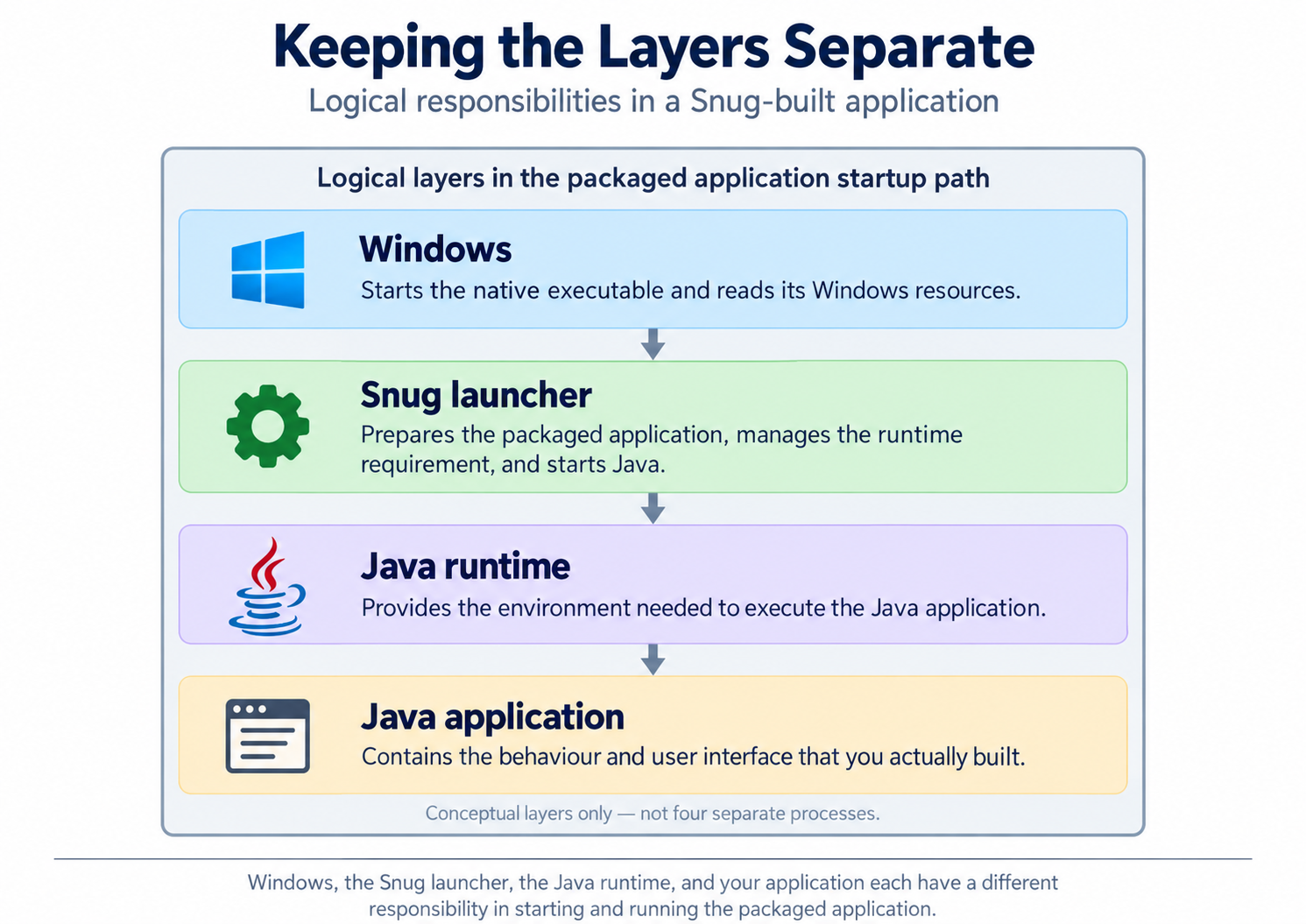
The easiest way to understand Snug technically is to think in layers:
|
Windows |
Starts the native executable and reads its Windows resources. |
|
Snug launcher |
Prepares the packaged application, manages the runtime requirement, and starts Java. |
|
Java runtime |
Provides the environment needed to execute the Java application. |
|
Java application |
Contains the behaviour and user interface that you actually built. |
Each layer has a different responsibility, and this separation is one of the reasons Snug can remain largely invisible to the person using the application.
|
|
Technical Details Will Evolve
Implementation details can change between releases. Use the source revision and release notes that match your Snug binary when checking cache behaviour, resource identifiers, runtime selection, and JVM invocation. The runtime-discovery limitation described under Finding a Java Runtime also applies here.
For a particular build, consult:
- the
--helpoutput from the Snug version being used - the launcher log produced by that application
- the release notes and documentation for that version
For implementation details, consult the matching source-code revision. The executable contains the native launcher and Windows resources; at runtime, the launcher prepares the application and starts Java.
Snug packages the application and manages its launch; Java runs the application.