
SECTION 5: CUSTOMISING LAUNCHER MESSAGES
Snug includes English launcher messages, so customisation is optional. Start with the short tutorial below to change and preview one message. The dialog guide explains where messages appear; the Message Key Reference and complete token tables are provided for reference.
Your First Message Change and Preview
First, generate a starter localisation file in PowerShell:
|
|
|
|
Open
localisations\snug-localisations.en.txt in a plain-text editor. Find runtime.prompt.heading and change only its value to:
runtime.prompt.heading = Install Java to start this application
Keep the key exactly as written, then save the file. This heading does not accept replacement tokens.
Next, open Snug Preview to see how your edited message appears. This is a separate program that displays launcher dialogs without requiring a complete application rebuild.
To open the preview, run:
|
|
|
|
Select English (en), then open the runtime installation confirmation dialog. Check that its main heading reads “Install Java to start this application”.
|
|
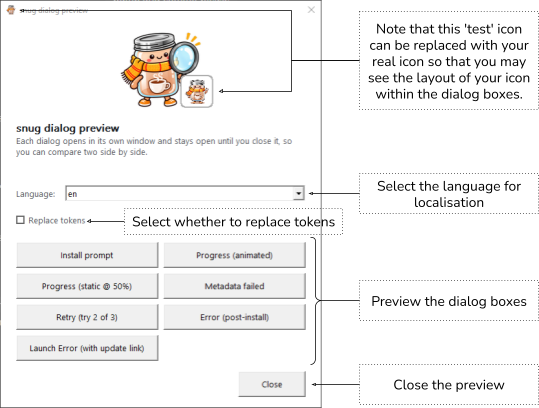
The screenshot uses an optional application icon. To preview your own branding, use the --icon option described under Previewing Your Changes.
|
|
|
|
This example uses the Snug project's test files; replace these paths with your localisation directory and icon.
Understanding Launcher Dialogs
Most launches are uneventful: the person using your application double-clicks its executable, and the Java application starts. When Snug needs to communicate, its dialogs fall into two main groups.
Runtime Installation Dialogs
These dialogs appear when Snug needs to obtain a compatible Java runtime. Snug first asks the user to confirm installation. If the user agrees, a progress window shows the download, verification, and extraction stages.
If installation encounters a problem, Snug may display a retry or failure dialog.
Cannot Launch Dialogs
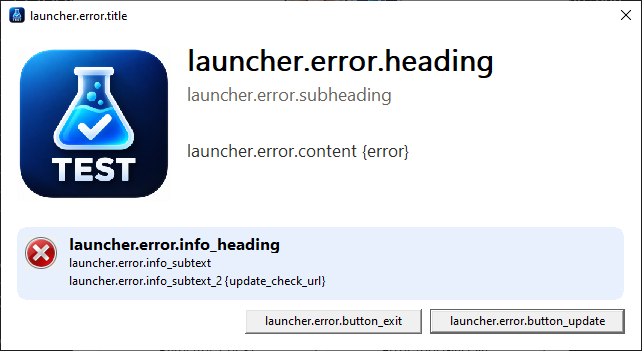
The Snug launch-error window uses launcher.error.* keys for its wording and the relevant err.* key for the underlying error. Built-in English is available when custom localisation is unavailable. Windows failures before the Snug launcher has initialised are separate: these localisation keys do not control Windows' own messages.
|
|
Customising the Messages
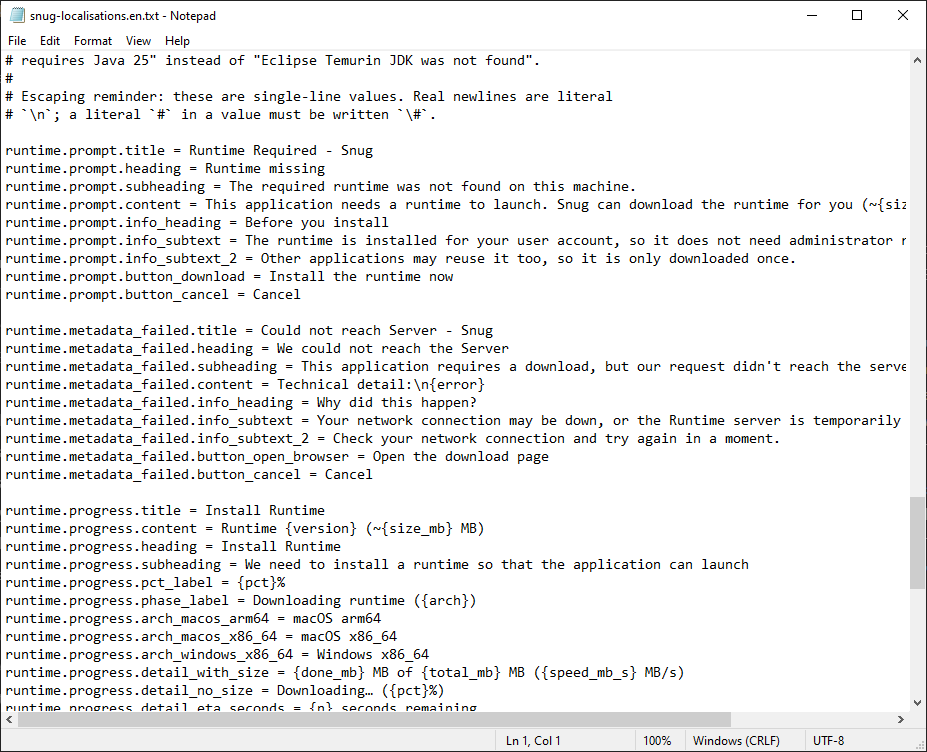
You can leave the default English messages alone, replace their wording with language that suits your application, or supply translations. The messages are stored as named entries in a localisation file. Each entry has a key that Snug recognises and a value containing the wording shown to the user. Some values also contain replacement tokens, such as {version}, which Snug fills in when the dialog appears.
For example, the structure of a message entry is:
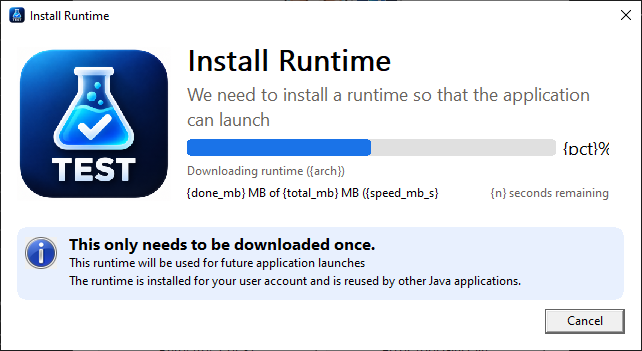
runtime.progress.pct_label = {pct}%
Here, runtime.progress.pct_label is the message key, and {pct} is a replacement token. Snug supplies the current percentage when showing the progress dialog. When editing a localisation file, leave both the key and supported replacement tokens intact. Change the surrounding words to suit the people using your application. This is a teaching example of a custom value, not a quotation of Snug's default English wording.
A Simple Editing Workflow
- Start with a copy of a Snug localisation file for the language you want to customise. Keep the original keys unchanged.
- Open the copy in a plain-text editor and change the values for the messages you want to personalise. You do not need to rewrite every message.
- Save the file, then use
snug_preview.exeto inspect the changed wording and buttons. - Add the localisation file or directory to
snug.options, build your executable, and check the result.
|
|
IMPORTANT: If a translation is missing a message, Snug uses the available fallback wording for that message, ultimately falling back to built-in English. Other translated messages remain available. |

For example, to use a directory of language files, include an option like this in snug.options:
--localisation "snug\localisation"
Section 4: Configuration Options gives the accepted values and full option reference.
|
|
Which Messages Can I Change?
The messages cover runtime installation and errors that prevent an application from launching. You can customise the wording of headings, explanations, and supported button labels. Changing a message does not change what a button does or how Snug handles an error.
|
|
IMPORTANT: Localisation changes the wording of Snug's dialogs, including supported button labels. It does not change button actions or error handling.
|
Use the following dialog guide to identify the message you want to change. For exact key names and token support, use the reference tables later in this section.
Understanding Dialog Layouts
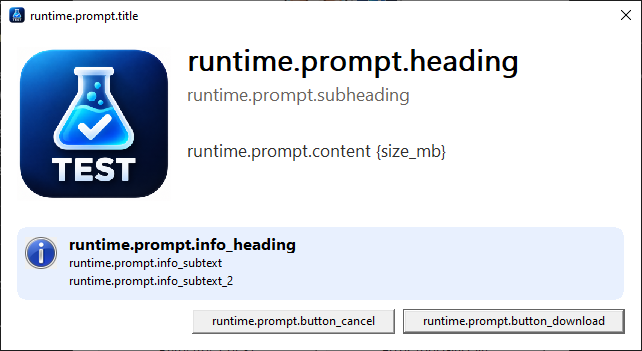
Most Snug runtime dialogs share a common layout. Rather than learning a completely different set of localisation keys for every window, you can recognise the same parts by their key suffixes. The dialog's prefix tells Snug which window the text belongs to; the suffix identifies where the text appears.
For example, runtime.progress.heading identifies the main heading in the installation progress window.
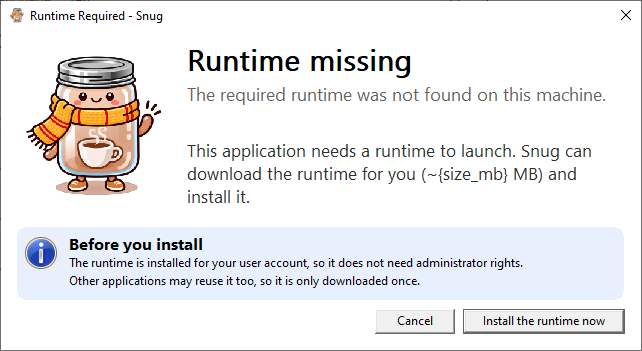
Before downloading a required runtime, Snug displays a confirmation dialog where the user can choose to install it or cancel. The wording in this dialog uses the runtime.prompt.* localisation keys.
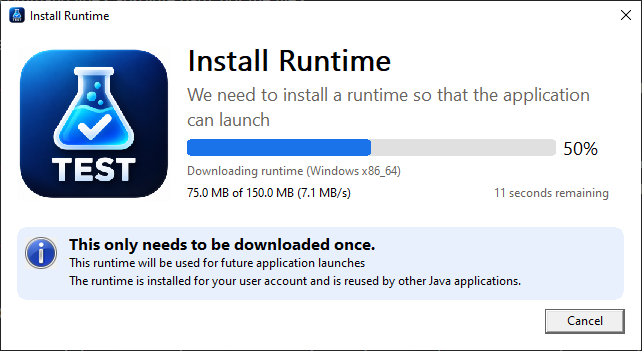
If the user agrees, Snug opens the progress window and begins downloading, verifying, and extracting the runtime.
These screenshots show examples of the localisation keys available for each dialog and where their messages appear. In normal use, Snug displays the message text associated with each key.
The annotated example below shows the common parts of a runtime dialog. Not every window uses every field: the progress dialog also shows download information, while the Snug launch-error window uses its own launcher.error.* message keys.
|
|
Common Localisation Key Suffixes
.title - The title displayed in the dialog window.
.heading - The main heading, which tells the user what is happening.
.subheading - Supporting text immediately below the main heading.
.content - The main explanation or instructions.
.info_heading - A heading for additional information.
.info_subtext - The first line of additional information.
.info_subtext_2 - The second line of additional information.
.button_<name> - The label for an action button, such as .button_cancel or .button_download. Buttons vary according to the dialog.
For example, runtime.progress.content identifies the main explanation in the installation progress window. The key determines where the text appears; a replacement token such as {version} determines which information Snug can insert when the dialog is displayed.
Keep the complete key, including its prefix and suffix, unchanged when editing a localisation file. Change only the text after the equals sign. The message tables later in this section list the actual keys available for each dialog and any replacement tokens they support.
The Runtime Installation Dialogs
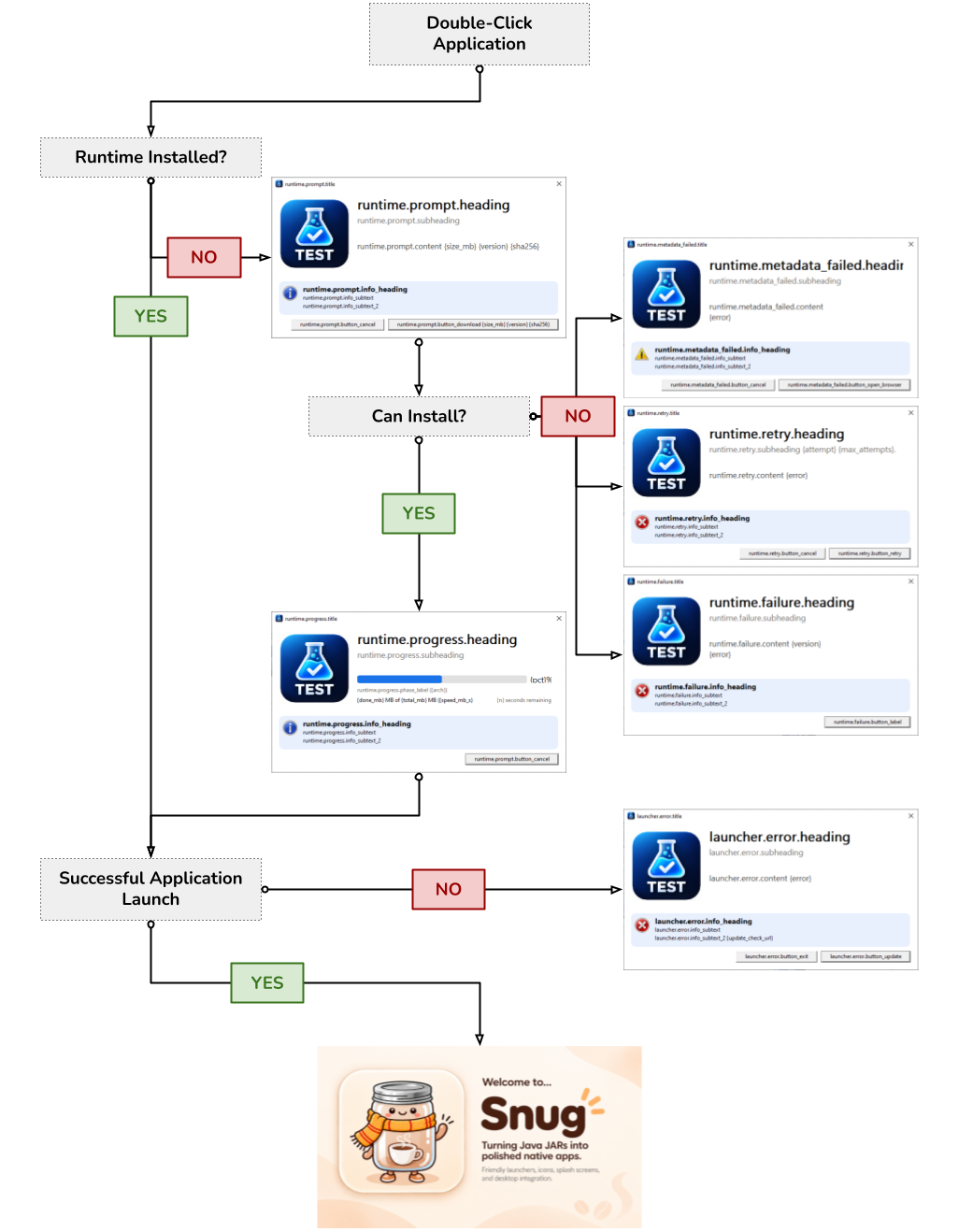
Runtime installation is the most interactive part of Snug's launcher. Normally the user only encounters it when a compatible runtime is unavailable. Once the runtime has been obtained and cached, later launches can reuse it without repeating the installation.
The normal installation path is:
- Runtime required
- Retrieve runtime download information
- Ask the user to confirm installation
- Download, verify, and extract the runtime
- Start the application.
If Snug cannot retrieve the download information, it can offer to open the runtime download page. If installation fails, a retry dialog can offer another attempt or cancellation.
|
|
When Snug Cannot Launch
Snug's launch-error window reports failures handled by the launcher, such as a missing application file or a Java application that cannot start. A failure reported by Windows before launcher initialisation is outside this dialog reference.
You can customise the launcher error window using launcher.error.* keys. Snug fills launcher.error.content with the underlying error message, which can itself be translated using the appropriate err.* key. If the embedded localisation files cannot be read, the window falls back to built-in English.
Message Key Reference
The reference begins with selected keys for each dialog, followed by token meanings, the complete token-bearing key table, and all no-token keys. REPLACEMENT_TOKENS.md in the Snug repository records the machine-checked token contract. For another Snug version, check its reference:
https://github.com/synapticloop/snug/blob/main/REPLACEMENT_TOKENS.md
Or you can run the command
|
|
|
|
This prints the replacement-token reference for the version of Snug you are using.
Keep every key exactly as shown. “Allowed tokens” lists the tokens a key supports; “Default English tokens” lists only those used by the supplied English wording. “None” means no tokens in that column. You may use any allowed token, even if the default wording omits it.
Runtime Installation Confirmation Keys
Use runtime.prompt.* for the installation confirmation dialog.
|
|
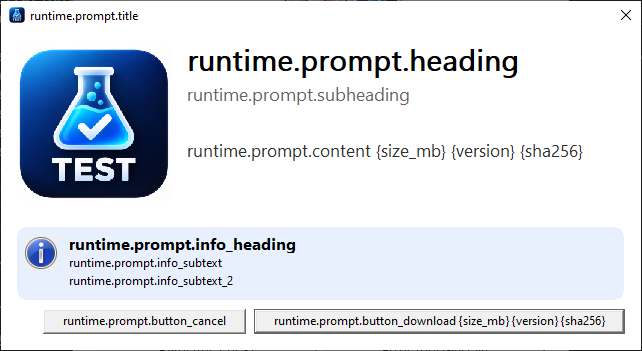
The selected keys below cover its explanation and action buttons. The complete reference later includes its headings and information text.
|
Localisation Key |
Description and allowed tokens |
|
|
|
|
|
the explanation; may use |
|
|
the cancel button (no replacement tokens). |
|
|
the download button; may use |
Downloading and Preparing the Runtime
Use runtime.progress.* for the download, verification, and extraction progress window.
|
|
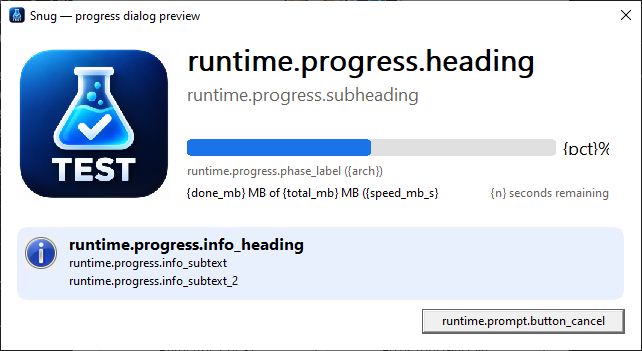
The progress dialog also supports title, heading, subheading, and informational text keys. These fields do not accept replacement tokens.
|
Localisation Key |
Description and allowed tokens |
|
|
|
|
|
the main progress message; may use |
|
|
the current download phase; may use |
|
|
the percentage display; may use |
|
|
downloaded amount and speed; may use |
|
|
progress when a total size is unavailable; may use |
|
|
remaining seconds; may use |
|
|
the message shown when the download is almost finished (no replacement tokens). |
When the Download Service Cannot Provide the Runtime
This dialog may appear when Snug cannot retrieve runtime release information, for example, because the network is unavailable or the download service cannot be reached.
|
|
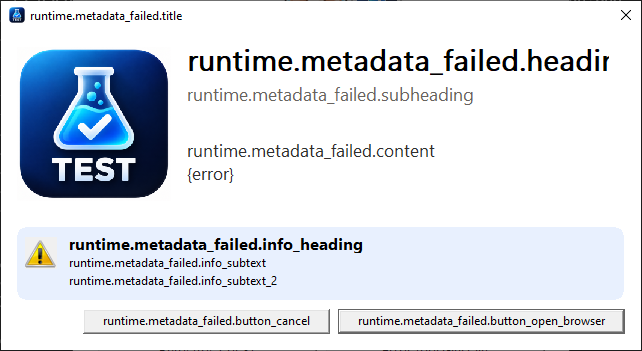
Use runtime.metadata_failed.* when runtime release information cannot be retrieved. The subheading allows {major}; the content allows {major} and {error}. The other keys in this group accept no tokens.
The default English content is Technical detail:\n{error}. It uses {error} only; a custom value may also use {major}.
|
Localisation Key |
Description and allowed tokens |
|
|
|
|
|
|
|
|
Allowed tokens: |
|
|
None |
|
|
None |
Retrying a Runtime Download
Use runtime.retry.* for the retry dialog following a download, verification, or extraction error. Its token contract is listed below.
|
|
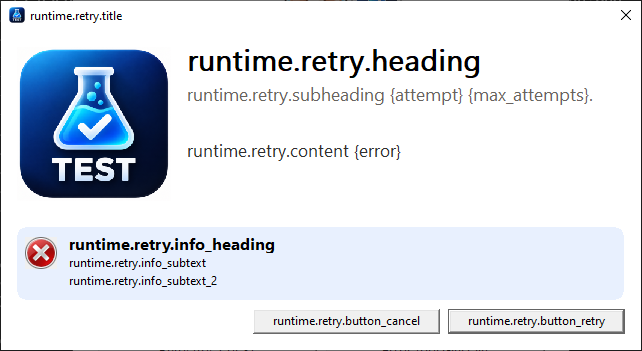
|
Localisation Key |
Description and allowed tokens |
|
|
|
|
|
|
|
|
|
|
|
None |
|
|
None |
When Runtime Installation Cannot Complete
Use runtime.failure.* for the final installation failure dialog. Metadata retrieval and retry dialogs have separate message groups.
|
|
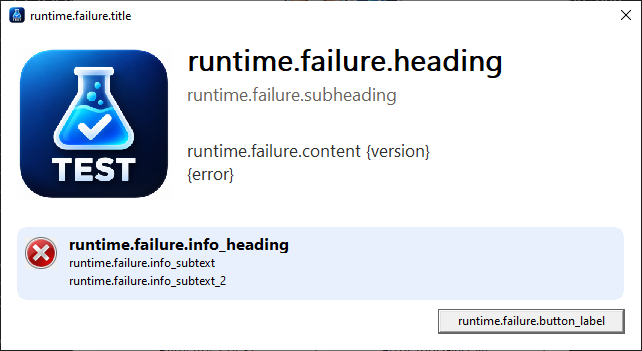
runtime.failure.content allows {version} and {error}. The retry entries below are repeated for convenience; their contracts are unchanged.
|
Localisation Key |
Description and allowed tokens |
|
|
|
|
|
the failure explanation; may use |
|
|
the retry message; may use |
|
|
additional retry information; may use |
|
|
the retry button (no replacement tokens). |
|
|
the cancel button (no replacement tokens). |
Snug Launcher Error Window
Use launcher.error.* for Snug's launch-error window. These keys do not customise failures reported by Windows before launcher initialisation.
|
|
|
Localisation Key |
Description and allowed tokens |
|
|
|
|
|
the explanation; may use |
|
|
additional information; may use |
|
|
the exit button (no replacement tokens). |
|
|
the update button (no replacement tokens). |
The selected dialog keys above are a starting point. The complete reference below also covers Java, file, splash-screen, and platform errors handled by Snug.
Replacement Tokens and the Key Reference
|
Replacement Token |
What Snug puts in its place |
|
|
|
|
|
positional slot - the single argument this key is handed, usually an error message |
|
|
byte length the pixel buffer turned out to have |
|
|
target architecture label, e.g. "Windows x64" |
|
|
which attempt this is, counting from 1 |
|
|
the SHA-256 the launcher calculated from the downloaded file |
|
|
the SHA-256 the publisher advertised |
|
|
megabytes downloaded so far |
|
|
the underlying error, already localised when it is a launcher error |
|
|
byte length the buffer's dimensions require |
|
|
the Java major version actually found on the machine |
|
|
the library that failed to load |
|
|
the Java major version the runtime metadata lookup was for |
|
|
total number of attempts configured |
|
|
the OS-level error text explaining the failed load |
|
|
the Java major version the application requires |
|
|
whole seconds of estimated time remaining |
|
|
name of the metadata field that was malformed |
|
|
a filesystem path that was located, or searched |
|
|
completion percentage as a whole number |
|
|
the SHA-256 digest the download is verified against |
|
|
approximate download size in megabytes |
|
|
current download speed in MB/s |
|
|
the exported symbol that was missing from it |
|
|
total megabytes to download |
|
|
the URL supplied through the builder's --update-url option, used to check for a newer release |
|
|
the value the launcher received for that field |
|
|
the JDK release being downloaded or installed, e.g. "25.0.1+9" |
|
|
IMPORTANT: A replacement token is only available where Snug supplies its value. For example, |
Keys and Their Allowed Tokens
This complete table lists every token-bearing key. “Allowed tokens” defines what a custom value may use; “Default English tokens” describes the supplied English value. None means no tokens in that column. Tokens are optional, but any token you use must be allowed for that exact key.
|
Localisation File Key |
Allowed tokens |
Default English tokens |
|
|
|
|
|
|
|
|
|
|
|
|
|
|
|
|
|
|
|
|
|
|
|
|
|
|
|
|
|
|
|
|
|
|
|
|
|
|
|
|
|
|
|
|
|
|
|
|
|
|
|
|
|
|
|
|
|
|
|
|
|
|
|
|
|
|
|
|
|
|
|
|
|
|
|
|
|
|
|
|
|
|
|
|
|
|
|
|
|
|
|
|
|
|
|
|
|
|
|
|
|
|
|
|
|
|
|
|
|
|
|
|
|
|
|
|
|
|
|
|
|
|
|
|
|
|
|
|
|
|
|
|
|
|
|
|
|
|
|
|
|
|
|
|
|
|
|
|
|
|
|
|
|
|
|
|
|
|
|
|
|
|
|
|
|
|
|
|
|
|
|
|
|
|
|
|
|
|
|
|
|
|
|
|
IMPORTANT: Keys not listed in the token-bearing table do not accept replacement tokens. A token placed in one of those keys is displayed literally. The remaining keys are listed by group below so that this chapter can be used as a complete reference. |
Keys Without Replacement Tokens
The keys below are also available in the English localisation catalogue. They do not accept replacement tokens. Keep the key names unchanged, and edit only their values.
The table groups no-token keys by dialog or purpose, with one key per line.
|
Dialog Window |
Localisation Key |
|
|
|
|
Launcher and Java errors |
|
|
Snug launcher error window |
|
|
Runtime installation progress |
|
|
Runtime metadata, retry, and failure dialogs |
|
|
Runtime installation confirmation |
|
|
Splash, platform, and generic messages |
|
Previewing Your Changes
You do not need to rebuild an executable every time you change a sentence. The separate snug_preview.exe utility can show launcher dialogs in their intended context, including unusual runtime-error states that are inconvenient to reproduce during ordinary testing.
By default, the preview uses the Snug Preview icon. To see the dialogs with your application icon, start it with:
|
|
|
|
To load a single localisation file or an entire directory, use --localisation. The language dropdown always includes English (en). Loading one German (de) file therefore offers de and en; loading a directory makes each available language selectable.
|
|
|
|
Open the preview with your localisation file or directory, select the language, and inspect each changed dialo
g.
Check that headings explain the situation, buttons describe their actions, and translations fit. Snug Preview displays sample dialog states; also test the packaged application before release.
|
|
Note: Close all open preview dialogs and restart |

Other Languages
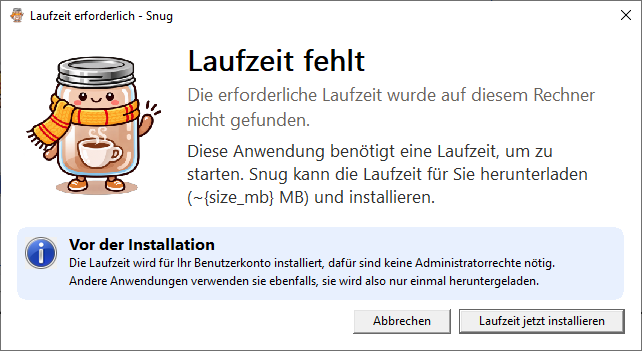
Localisation allows the same Windows executable to show launcher messages suited to the language selected by Windows. This is particularly useful when the Java application itself already supports more than one language.
Keep each language's messages in its own localisation file, or provide a directory containing the files. The built-in English messages remain available as a fallback when Snug cannot select a suitable translation. You can preview each language before building.
|
|
Before You Build: Final Checks
Before building, check:
• Keep every localisation key unchanged; edit only its value.
• Use only tokens allowed for that exact key, with braces, spelling, and case intact.
• Save each language file and restart Snug Preview to load your edits.
• Preview every changed dialog and language; check headings, line wrapping, button labels, and unexpected literal tokens.
• Have translations checked by a fluent speaker.
• Supply the intended file or directory through --localisation in snug.options (see Section 4: Configuration Options).
• Build and run the packaged application on Windows; check the messages in the launch and runtime scenarios you can reproduce. Preview alone does not verify runtime behaviour.